> ## Documentation Index
> Fetch the complete documentation index at: https://docs.nativeline.ai/llms.txt
> Use this file to discover all available pages before exploring further.
# AI Modes
> Choose the right AI mode for your project
# AI Modes
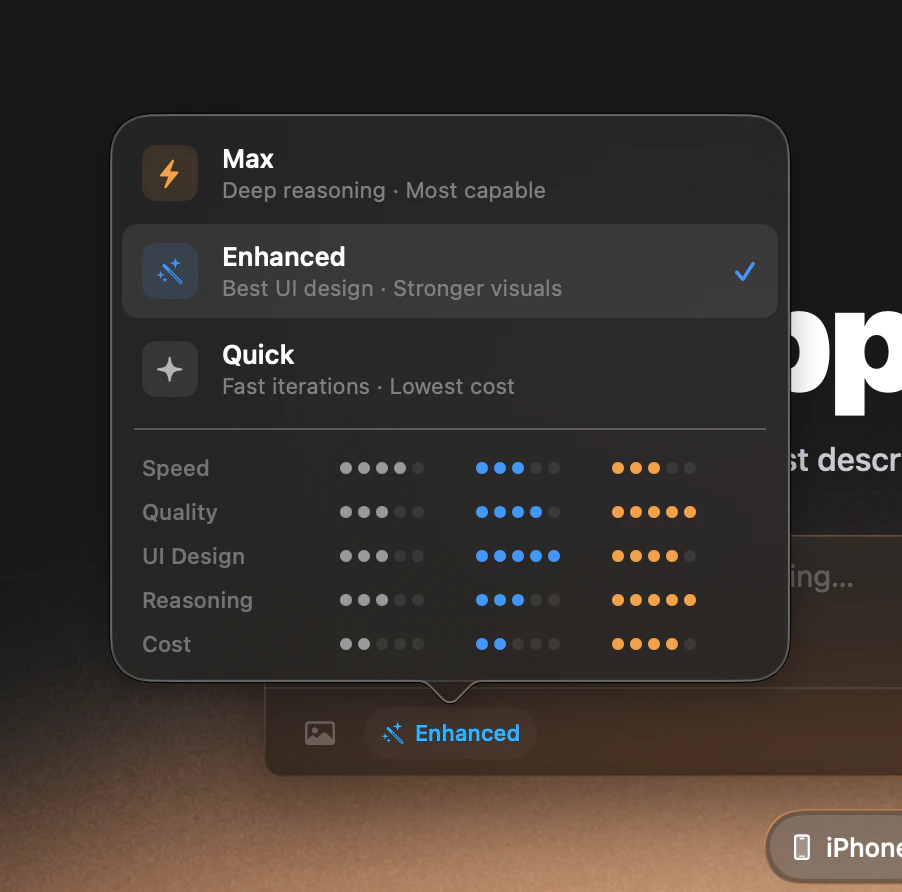
Nativeline gives you three AI modes, each optimized for different tasks. You can switch modes anytime from the chat input bar or the home page.
 ***
## The Three Modes
**Fast & efficient**
| | |
| --------- | ------ |
| Speed | Fast |
| Quality | Good |
| UI Design | Good |
| Reasoning | Good |
| Cost | Lowest |
Best for rapid iteration, simple changes, and exploring ideas.
**Best for most projects** — DEFAULT
| | |
| --------- | ------ |
| Speed | Medium |
| Quality | Great |
| UI Design | Best |
| Reasoning | Good |
| Cost | Low |
Best for most projects, visual design, and polished UIs. This is the default mode and the recommended starting point.
**Deep reasoning**
| | |
| --------- | --------- |
| Speed | Medium |
| Quality | Excellent |
| UI Design | Great |
| Reasoning | Best |
| Cost | Higher |
Best for complex app logic, debugging difficult issues, and architectural decisions.
***
## Mode Comparison
| | Quick | Enhanced | Max |
| --------- | ----- | -------- | ------ |
| Speed | ●●●●○ | ●●●○○ | ●●●○○ |
| Quality | ●●●○○ | ●●●●○ | ●●●●● |
| UI Design | ●●●○○ | ●●●●● | ●●●●○ |
| Reasoning | ●●●○○ | ●●●○○ | ●●●●● |
| Cost | \$ | \$ | \$\$\$ |
***
## How to Switch Modes
Look for the AI mode selector in the chat input area at the bottom of the Build tab.
Click the current mode name to open the mode picker.
Select the mode you want to use.
Your next message will use the new mode. That's it.
You can also select your mode on the Home Page before starting a new project.
***
## When to Use Each Mode
Use Quick mode when you're trying different approaches, making small tweaks, or exploring ideas. It gives you fast responses at the lowest cost.
**Example prompts for Quick mode:**
```
"Change the button color to blue"
"Add a back button to this screen"
"Try a different layout for the list"
```
Enhanced is the default for good reason. It produces the best visual designs, polished UIs, and well-structured code. Use this for most projects.
**Example prompts for Enhanced mode:**
```
"Build a settings page with profile photo, name, and toggles"
"Create a dashboard with charts and a summary card"
"Design a modern onboarding flow with three steps"
```
Use Max when your app has intricate business logic, nested data relationships, or when you're stuck on a difficult bug. Max reasons deeply about complex problems.
**Example prompts for Max mode:**
```
"The data isn't syncing correctly between tabs — debug this"
"Build a scheduling system that handles recurring events and conflicts"
"Refactor the navigation to support deep linking"
```
***
## How Modes Affect Bits
Different modes consume bits at different rates. More powerful modes use more bits per message, but there's a nuance worth understanding.
Enhanced mode often costs the same or less than Quick mode for the same task, because it makes fewer mistakes and needs fewer iterations. It's the default for a reason.
***
## The Default: Enhanced
We recommend Enhanced mode for most users and most projects. Here's why:
* **Best-looking UIs** — Enhanced produces the most polished visual designs of any mode
* **Fewer mistakes** — It gets things right more often than Quick, saving you retries
* **Cost-effective** — Roughly the same total cost as Quick for most tasks, because fewer iterations are needed
* **Default for every new project** — You don't need to change anything to get started
Only switch away from Enhanced when you have a specific reason to. If you need faster responses for small tweaks, drop to Quick. If you're dealing with complex logic or a tough bug, step up to Max.
Switching to Quick mode to "save bits" can backfire. If the AI makes more mistakes, you'll spend more bits fixing them than you saved.
***
## Related
Learn how to use the chat workspace where you select and use AI modes
Compare plans and understand how bits work across modes
***
## The Three Modes
**Fast & efficient**
| | |
| --------- | ------ |
| Speed | Fast |
| Quality | Good |
| UI Design | Good |
| Reasoning | Good |
| Cost | Lowest |
Best for rapid iteration, simple changes, and exploring ideas.
**Best for most projects** — DEFAULT
| | |
| --------- | ------ |
| Speed | Medium |
| Quality | Great |
| UI Design | Best |
| Reasoning | Good |
| Cost | Low |
Best for most projects, visual design, and polished UIs. This is the default mode and the recommended starting point.
**Deep reasoning**
| | |
| --------- | --------- |
| Speed | Medium |
| Quality | Excellent |
| UI Design | Great |
| Reasoning | Best |
| Cost | Higher |
Best for complex app logic, debugging difficult issues, and architectural decisions.
***
## Mode Comparison
| | Quick | Enhanced | Max |
| --------- | ----- | -------- | ------ |
| Speed | ●●●●○ | ●●●○○ | ●●●○○ |
| Quality | ●●●○○ | ●●●●○ | ●●●●● |
| UI Design | ●●●○○ | ●●●●● | ●●●●○ |
| Reasoning | ●●●○○ | ●●●○○ | ●●●●● |
| Cost | \$ | \$ | \$\$\$ |
***
## How to Switch Modes
Look for the AI mode selector in the chat input area at the bottom of the Build tab.
Click the current mode name to open the mode picker.
Select the mode you want to use.
Your next message will use the new mode. That's it.
You can also select your mode on the Home Page before starting a new project.
***
## When to Use Each Mode
Use Quick mode when you're trying different approaches, making small tweaks, or exploring ideas. It gives you fast responses at the lowest cost.
**Example prompts for Quick mode:**
```
"Change the button color to blue"
"Add a back button to this screen"
"Try a different layout for the list"
```
Enhanced is the default for good reason. It produces the best visual designs, polished UIs, and well-structured code. Use this for most projects.
**Example prompts for Enhanced mode:**
```
"Build a settings page with profile photo, name, and toggles"
"Create a dashboard with charts and a summary card"
"Design a modern onboarding flow with three steps"
```
Use Max when your app has intricate business logic, nested data relationships, or when you're stuck on a difficult bug. Max reasons deeply about complex problems.
**Example prompts for Max mode:**
```
"The data isn't syncing correctly between tabs — debug this"
"Build a scheduling system that handles recurring events and conflicts"
"Refactor the navigation to support deep linking"
```
***
## How Modes Affect Bits
Different modes consume bits at different rates. More powerful modes use more bits per message, but there's a nuance worth understanding.
Enhanced mode often costs the same or less than Quick mode for the same task, because it makes fewer mistakes and needs fewer iterations. It's the default for a reason.
***
## The Default: Enhanced
We recommend Enhanced mode for most users and most projects. Here's why:
* **Best-looking UIs** — Enhanced produces the most polished visual designs of any mode
* **Fewer mistakes** — It gets things right more often than Quick, saving you retries
* **Cost-effective** — Roughly the same total cost as Quick for most tasks, because fewer iterations are needed
* **Default for every new project** — You don't need to change anything to get started
Only switch away from Enhanced when you have a specific reason to. If you need faster responses for small tweaks, drop to Quick. If you're dealing with complex logic or a tough bug, step up to Max.
Switching to Quick mode to "save bits" can backfire. If the AI makes more mistakes, you'll spend more bits fixing them than you saved.
***
## Related
Learn how to use the chat workspace where you select and use AI modes
Compare plans and understand how bits work across modes