> ## Documentation Index
> Fetch the complete documentation index at: https://docs.nativeline.ai/llms.txt
> Use this file to discover all available pages before exploring further.
# Embedded Simulator
> Test your app instantly, right inside Nativeline
# Embedded Simulator
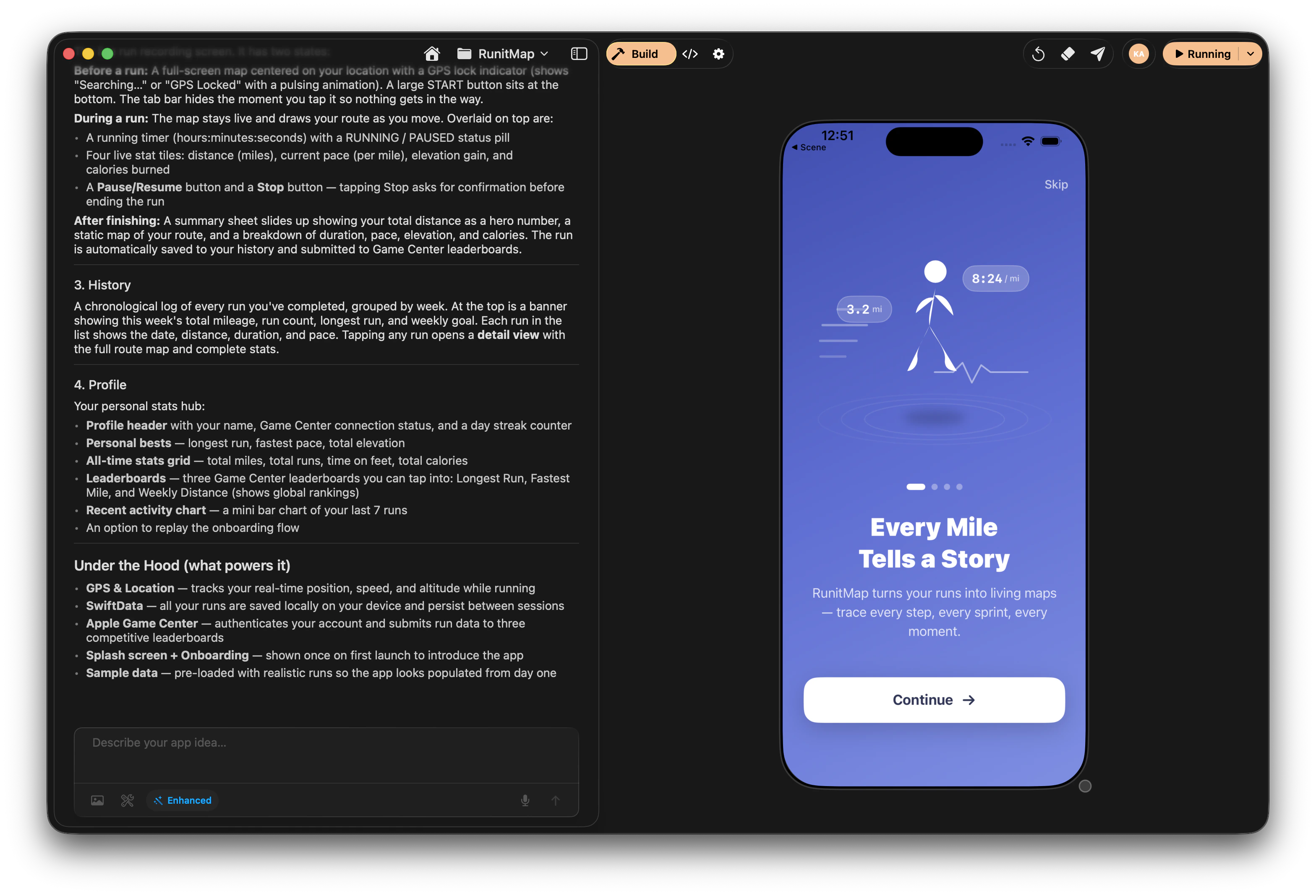
The embedded simulator lives right inside Nativeline. No juggling windows, no switching apps. You build with chat on the left, and your app runs on the right.
 ## How It Works
When you open the **Build** tab, the right side of your workspace becomes a live simulator. Every time you make a change through chat and the build succeeds, your app automatically launches and updates in that same view.
```
┌─────────────────────────────────────────────────────────────────┐
│ Toolbar │
├────────────────┬────────────────────────────────────────────────┤
│ │ │
│ Tabs │ ┌──────────────┐ ┌──────────────────┐ │
│ │ │ │ │ │ │
│ - Build │ │ Chat + │ │ Embedded │ │
│ - Database │ │ AI Responses│ │ Simulator │ │
│ - Code │ │ │ │ │ │
│ - Settings │ │ │ │ [ iPhone ] │ │
│ │ │ │ │ [ Your App ] │ │
│ │ │ │ │ │ │
│ │ └──────────────┘ └──────────────────┘ │
│ │ │
│ │ ┌───────────────────────────────────────┐ │
│ │ │ Message Input │ │
│ │ └───────────────────────────────────────┘ │
└────────────────┴────────────────────────────────────────────────┘
```
No separate Simulator app. No window management. Everything is right where you need it.
***
## Getting Started
Select a project from the Nativeline home screen or create a new one.
Make sure the **Build** tab is selected on the left sidebar. The simulator panel appears on the right side of the workspace.
Describe what you want to build or change. The AI writes the code and kicks off a build automatically.
When the build succeeds, your app launches in the embedded simulator. You can interact with it immediately.
The embedded simulator updates automatically after each successful build. Just keep chatting and watch your changes appear.
***
## Interacting with the Simulator
The simulator responds to your mouse and keyboard just like a real device. Click inside the simulator frame and start using your app.
| Action | How |
| ---------- | ----------------------------------- |
| Tap | Click |
| Scroll | Click and drag, or two-finger swipe |
| Swipe | Click and drag |
| Long press | Click and hold |
| Pinch/zoom | Option + click and drag |
| Home | Cmd+Shift+H |
| Rotate | Cmd+Left/Right Arrow |
### Text Input
Click on any text field in the simulator and type with your Mac keyboard. The simulator uses your hardware keyboard by default.
***
## Device Selection
You can change the simulated device to test how your app looks and feels on different screen sizes. Look for the device selector in the simulator toolbar.
| Device | Best For |
| ----------------- | ------------------------------ |
| iPhone SE | Small screens, compact layouts |
| iPhone 16 | Standard size, most common |
| iPhone 16 Pro Max | Large screens, edge cases |
| iPad | Tablet layouts, multitasking |
***
## Appearance
Toggle between **light mode** and **dark mode** directly from the simulator to make sure your app looks great in both. This is especially useful if your app supports dynamic colors or adaptive styling.
***
## Platform Differences
Shows an iPhone simulator frame with your app running inside. Full touch interaction support.
Shows an iPad simulator frame. Great for testing tablet-specific layouts and multitasking.
Your app runs natively in a window on your Mac. No simulator needed.
When building for Mac, your app runs natively in a window on your Mac. There's no simulator — you're testing the real thing.
***
## Build States
As your app compiles and launches, the simulator area shows what's happening:
| State | What You'll See |
| -------------- | ------------------------------------------------------- |
| **Building** | A progress indicator while your code compiles |
| **Installing** | The app is being installed on the virtual device |
| **Running** | Your app is live and interactive |
| **Error** | The build failed — check the chat for details and fixes |
***
## First Launch
The first time the simulator boots, expect it to take **30 to 60 seconds**. It needs to spin up the virtual device and load iOS.
After that initial boot, subsequent launches are much faster. The simulator stays warm in the background, so rebuilds appear almost instantly.
***
## Screenshots and Recording
While the simulator is focused, you can capture what's on screen:
* **Screenshot:** Cmd+S (saved to your Desktop)
* **Screen Recording:** Use the Simulator menu to start and stop recording
These are great for sharing progress, reporting bugs, or creating assets for your App Store listing.
***
## What the Simulator Can't Do
The simulator covers most of what you need for development, but some things require a real device:
| Not Available | What to Do Instead |
| -------------------- | ---------------------------------------------- |
| Real camera | Use the photo library to test image picking |
| Actual GPS | Use simulated locations (Features menu) |
| Push notifications | Local notifications work fine for testing |
| Accurate performance | Deploy to TestFlight and test on a real device |
| Face ID hardware | Use simulated Face ID (Features menu) |
For anything the simulator can't handle, deploy your app via TestFlight and test on a real iPhone.
***
## Troubleshooting
The simulator can take 30 to 60 seconds to appear on first boot. Make sure:
* The **Build** tab is selected (not Code or Settings)
* You've sent at least one message to trigger a build
* You're building for iPhone or iPad (Mac apps run in a native window)
If it still doesn't appear, try restarting Nativeline.
* Check the chat for build errors — the AI usually explains what went wrong
* Make sure the build has fully completed (watch for the success indicator)
* The app may have launched to a blank screen if there's a runtime error — check the chat for details
* Close other heavy applications on your Mac
* Try a simpler device (iPhone SE instead of Pro Max)
* Restart Nativeline to reset the simulator
* Make sure your Mac has enough free memory
* Click directly inside the simulator frame — clicks outside it won't register
* Make sure the simulator has finished loading (wait for the app to fully appear)
* If the app is frozen, send another message in chat to trigger a fresh build
***
## Related
Learn how to build your app through conversation
Test on real devices with TestFlight
## How It Works
When you open the **Build** tab, the right side of your workspace becomes a live simulator. Every time you make a change through chat and the build succeeds, your app automatically launches and updates in that same view.
```
┌─────────────────────────────────────────────────────────────────┐
│ Toolbar │
├────────────────┬────────────────────────────────────────────────┤
│ │ │
│ Tabs │ ┌──────────────┐ ┌──────────────────┐ │
│ │ │ │ │ │ │
│ - Build │ │ Chat + │ │ Embedded │ │
│ - Database │ │ AI Responses│ │ Simulator │ │
│ - Code │ │ │ │ │ │
│ - Settings │ │ │ │ [ iPhone ] │ │
│ │ │ │ │ [ Your App ] │ │
│ │ │ │ │ │ │
│ │ └──────────────┘ └──────────────────┘ │
│ │ │
│ │ ┌───────────────────────────────────────┐ │
│ │ │ Message Input │ │
│ │ └───────────────────────────────────────┘ │
└────────────────┴────────────────────────────────────────────────┘
```
No separate Simulator app. No window management. Everything is right where you need it.
***
## Getting Started
Select a project from the Nativeline home screen or create a new one.
Make sure the **Build** tab is selected on the left sidebar. The simulator panel appears on the right side of the workspace.
Describe what you want to build or change. The AI writes the code and kicks off a build automatically.
When the build succeeds, your app launches in the embedded simulator. You can interact with it immediately.
The embedded simulator updates automatically after each successful build. Just keep chatting and watch your changes appear.
***
## Interacting with the Simulator
The simulator responds to your mouse and keyboard just like a real device. Click inside the simulator frame and start using your app.
| Action | How |
| ---------- | ----------------------------------- |
| Tap | Click |
| Scroll | Click and drag, or two-finger swipe |
| Swipe | Click and drag |
| Long press | Click and hold |
| Pinch/zoom | Option + click and drag |
| Home | Cmd+Shift+H |
| Rotate | Cmd+Left/Right Arrow |
### Text Input
Click on any text field in the simulator and type with your Mac keyboard. The simulator uses your hardware keyboard by default.
***
## Device Selection
You can change the simulated device to test how your app looks and feels on different screen sizes. Look for the device selector in the simulator toolbar.
| Device | Best For |
| ----------------- | ------------------------------ |
| iPhone SE | Small screens, compact layouts |
| iPhone 16 | Standard size, most common |
| iPhone 16 Pro Max | Large screens, edge cases |
| iPad | Tablet layouts, multitasking |
***
## Appearance
Toggle between **light mode** and **dark mode** directly from the simulator to make sure your app looks great in both. This is especially useful if your app supports dynamic colors or adaptive styling.
***
## Platform Differences
Shows an iPhone simulator frame with your app running inside. Full touch interaction support.
Shows an iPad simulator frame. Great for testing tablet-specific layouts and multitasking.
Your app runs natively in a window on your Mac. No simulator needed.
When building for Mac, your app runs natively in a window on your Mac. There's no simulator — you're testing the real thing.
***
## Build States
As your app compiles and launches, the simulator area shows what's happening:
| State | What You'll See |
| -------------- | ------------------------------------------------------- |
| **Building** | A progress indicator while your code compiles |
| **Installing** | The app is being installed on the virtual device |
| **Running** | Your app is live and interactive |
| **Error** | The build failed — check the chat for details and fixes |
***
## First Launch
The first time the simulator boots, expect it to take **30 to 60 seconds**. It needs to spin up the virtual device and load iOS.
After that initial boot, subsequent launches are much faster. The simulator stays warm in the background, so rebuilds appear almost instantly.
***
## Screenshots and Recording
While the simulator is focused, you can capture what's on screen:
* **Screenshot:** Cmd+S (saved to your Desktop)
* **Screen Recording:** Use the Simulator menu to start and stop recording
These are great for sharing progress, reporting bugs, or creating assets for your App Store listing.
***
## What the Simulator Can't Do
The simulator covers most of what you need for development, but some things require a real device:
| Not Available | What to Do Instead |
| -------------------- | ---------------------------------------------- |
| Real camera | Use the photo library to test image picking |
| Actual GPS | Use simulated locations (Features menu) |
| Push notifications | Local notifications work fine for testing |
| Accurate performance | Deploy to TestFlight and test on a real device |
| Face ID hardware | Use simulated Face ID (Features menu) |
For anything the simulator can't handle, deploy your app via TestFlight and test on a real iPhone.
***
## Troubleshooting
The simulator can take 30 to 60 seconds to appear on first boot. Make sure:
* The **Build** tab is selected (not Code or Settings)
* You've sent at least one message to trigger a build
* You're building for iPhone or iPad (Mac apps run in a native window)
If it still doesn't appear, try restarting Nativeline.
* Check the chat for build errors — the AI usually explains what went wrong
* Make sure the build has fully completed (watch for the success indicator)
* The app may have launched to a blank screen if there's a runtime error — check the chat for details
* Close other heavy applications on your Mac
* Try a simpler device (iPhone SE instead of Pro Max)
* Restart Nativeline to reset the simulator
* Make sure your Mac has enough free memory
* Click directly inside the simulator frame — clicks outside it won't register
* Make sure the simulator has finished loading (wait for the app to fully appear)
* If the app is frozen, send another message in chat to trigger a fresh build
***
## Related
Learn how to build your app through conversation
Test on real devices with TestFlight