> ## Documentation Index
> Fetch the complete documentation index at: https://docs.nativeline.ai/llms.txt
> Use this file to discover all available pages before exploring further.
# Version History
> Track changes and restore previous versions of your app
**Pro plan required.** Version history is available on the Pro plan.
Nativeline automatically tracks every change the AI makes to your project using Git version control under the hood. You never need to manually save, commit, or think about backups — it just happens.
Think of it as an unlimited undo history for your entire project.
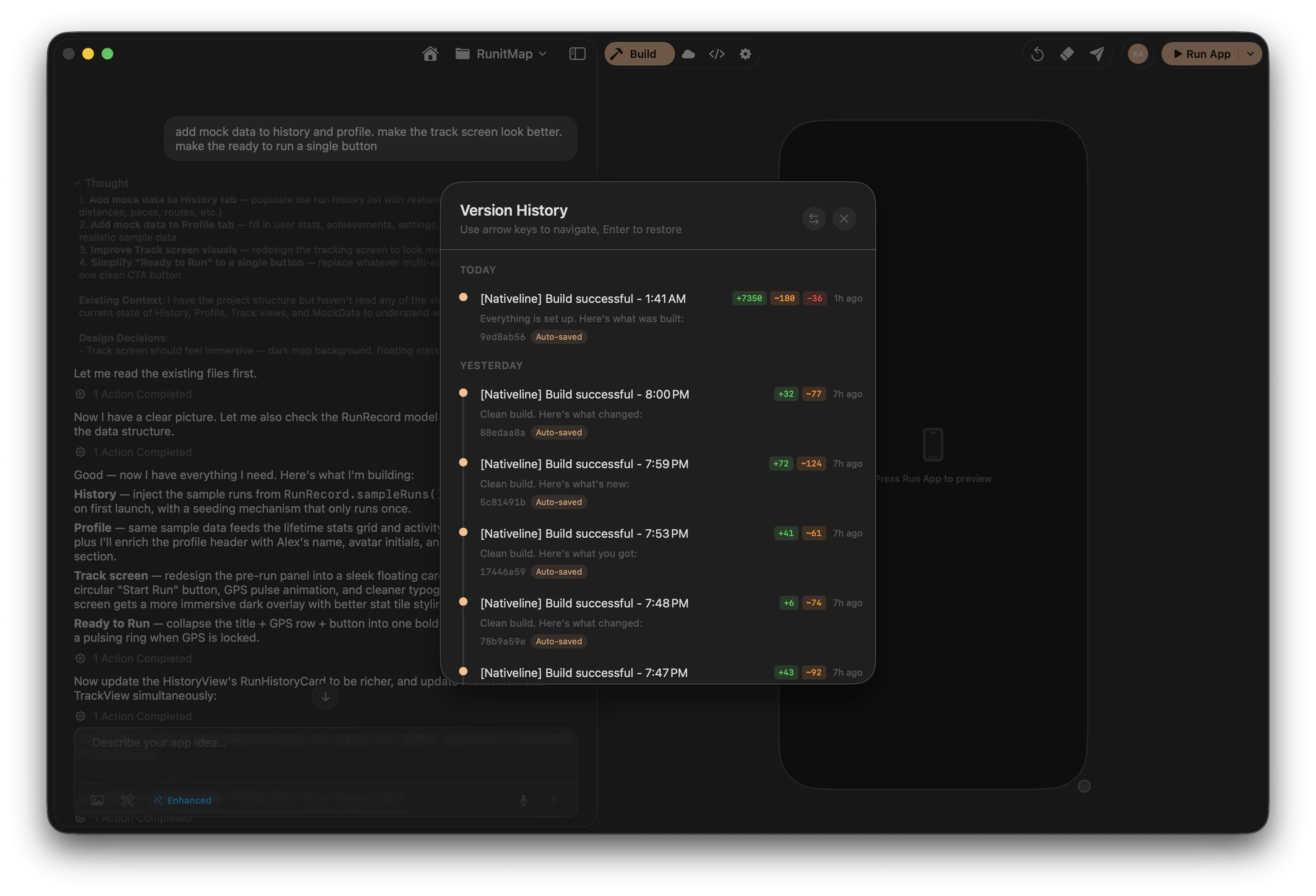 ## How It Works
The version tracking system runs silently in the background every time you interact with the AI.
Whenever the AI writes, modifies, or deletes files in your project, a new version is created behind the scenes. This includes creating new Swift files, editing existing views, updating assets, or removing unused code.
Each version is tagged with the exact time it was created, so you can see a clear timeline of your project's evolution from first build to latest change.
Every version records which files were modified, added, or removed — giving you a full audit trail of every change the AI has made.
Versions are grouped by time for easy browsing:
| Group | What it shows |
| --------------- | -------------------------------------------- |
| **Today** | All changes made during your current session |
| **Yesterday** | Yesterday's changes |
| **By day name** | Monday, Tuesday, etc. for the current week |
| **By date** | Older changes shown with their full date |
This grouping makes it easy to find what you're looking for. If you know the AI broke something "sometime this morning," you can quickly scan today's versions to find the right one.
## Viewing Version History
Navigate to the **Settings** tab in your project. You can find it in the project sidebar.
Open the Version History section to see your project's full timeline of changes.
Scroll through your versions grouped by time. Each entry shows:
* When the version was created
* Which files were modified, added, or removed
* A brief description of the change
The timeline reads top-to-bottom, with the most recent changes at the top. Scroll down to go further back in time.
## Restoring a Previous Version
Found a point in time you want to go back to? Restoring is straightforward.
Click on any version in the timeline to select it. You'll see a summary of what the project looked like at that point.
See what will change if you restore to this point — which files will be reverted, which will be added back, and which will be removed. This gives you full visibility before you commit to anything.
Confirm the restore to revert your project to that version. Your project files will be updated immediately.
Restoring a previous version will overwrite your current code. Make sure you want to go back before confirming.
## How It Helps
Version history is your safety net. Here are the most common ways it saves your work:
The AI made an edit that broke something or looked wrong? Jump back to the version right before that change. This is the most common use case — you asked for something, didn't like the result, and want to go back.
Sometimes a sequence of changes leads you down a dead end. Maybe you asked the AI to refactor a view, then fix the refactor, then fix the fix. Instead of trying to untangle the mess, just restore to the last working state and try a different approach.
Want to see how a feature looked before the AI redesigned it? Browse the timeline to find the earlier version. This helps you decide whether the new direction is better or whether you should go back.
Accidentally asked the AI to remove something you needed? Every previous version of every file is preserved in the history. Nothing is truly gone as long as you have version history.
Version history removes the fear of breaking things. Try bold changes, experiment with new approaches, and know you can always get back to a working state. This freedom to experiment is one of the biggest benefits.
## Things to Keep in Mind
Here are some important details about how version history works:
* **Versions are per-project.** Each project has its own independent version history. Restoring one project doesn't affect any other.
* **Only AI changes create versions.** Manual edits you make in the code editor don't automatically trigger a new version. If you want to preserve a manual edit, make another AI change afterward.
* **Restoring doesn't delete future versions.** After restoring to an earlier point, you can still see and navigate to versions that came after the one you restored to. Nothing is lost.
* **No storage limits.** Your version history isn't capped. Every change is preserved for the lifetime of your project.
Version history is automatic — you don't need to manually save or commit. Every AI action creates a checkpoint.
## Typical Workflow
Here's how most people use version history in practice:
```
1. Build your app through chat — ask the AI to add features, fix bugs, redesign screens
2. Notice something went wrong after a few changes
3. Open Version History from the Settings tab
4. Browse the timeline to find the last version where things looked right
5. Click Restore to revert your project to that version
6. Continue building from the known-good state
```
This cycle of build, review, and restore lets you experiment freely without worrying about breaking things permanently. It's like having an infinite number of save points in a game.
## Frequently Asked Questions
Yes. Version history preserves every change for the lifetime of your project. You can go back to the very first version if you need to.
No. Restoring a version only affects your project files. Your conversation with the AI remains unchanged.
You can. Since restoring doesn't delete future versions, you can navigate forward in the timeline and restore to a later version — including the one you just came from.
***
View and edit the code the AI generates.
How the AI remembers your preferences and decisions.
## How It Works
The version tracking system runs silently in the background every time you interact with the AI.
Whenever the AI writes, modifies, or deletes files in your project, a new version is created behind the scenes. This includes creating new Swift files, editing existing views, updating assets, or removing unused code.
Each version is tagged with the exact time it was created, so you can see a clear timeline of your project's evolution from first build to latest change.
Every version records which files were modified, added, or removed — giving you a full audit trail of every change the AI has made.
Versions are grouped by time for easy browsing:
| Group | What it shows |
| --------------- | -------------------------------------------- |
| **Today** | All changes made during your current session |
| **Yesterday** | Yesterday's changes |
| **By day name** | Monday, Tuesday, etc. for the current week |
| **By date** | Older changes shown with their full date |
This grouping makes it easy to find what you're looking for. If you know the AI broke something "sometime this morning," you can quickly scan today's versions to find the right one.
## Viewing Version History
Navigate to the **Settings** tab in your project. You can find it in the project sidebar.
Open the Version History section to see your project's full timeline of changes.
Scroll through your versions grouped by time. Each entry shows:
* When the version was created
* Which files were modified, added, or removed
* A brief description of the change
The timeline reads top-to-bottom, with the most recent changes at the top. Scroll down to go further back in time.
## Restoring a Previous Version
Found a point in time you want to go back to? Restoring is straightforward.
Click on any version in the timeline to select it. You'll see a summary of what the project looked like at that point.
See what will change if you restore to this point — which files will be reverted, which will be added back, and which will be removed. This gives you full visibility before you commit to anything.
Confirm the restore to revert your project to that version. Your project files will be updated immediately.
Restoring a previous version will overwrite your current code. Make sure you want to go back before confirming.
## How It Helps
Version history is your safety net. Here are the most common ways it saves your work:
The AI made an edit that broke something or looked wrong? Jump back to the version right before that change. This is the most common use case — you asked for something, didn't like the result, and want to go back.
Sometimes a sequence of changes leads you down a dead end. Maybe you asked the AI to refactor a view, then fix the refactor, then fix the fix. Instead of trying to untangle the mess, just restore to the last working state and try a different approach.
Want to see how a feature looked before the AI redesigned it? Browse the timeline to find the earlier version. This helps you decide whether the new direction is better or whether you should go back.
Accidentally asked the AI to remove something you needed? Every previous version of every file is preserved in the history. Nothing is truly gone as long as you have version history.
Version history removes the fear of breaking things. Try bold changes, experiment with new approaches, and know you can always get back to a working state. This freedom to experiment is one of the biggest benefits.
## Things to Keep in Mind
Here are some important details about how version history works:
* **Versions are per-project.** Each project has its own independent version history. Restoring one project doesn't affect any other.
* **Only AI changes create versions.** Manual edits you make in the code editor don't automatically trigger a new version. If you want to preserve a manual edit, make another AI change afterward.
* **Restoring doesn't delete future versions.** After restoring to an earlier point, you can still see and navigate to versions that came after the one you restored to. Nothing is lost.
* **No storage limits.** Your version history isn't capped. Every change is preserved for the lifetime of your project.
Version history is automatic — you don't need to manually save or commit. Every AI action creates a checkpoint.
## Typical Workflow
Here's how most people use version history in practice:
```
1. Build your app through chat — ask the AI to add features, fix bugs, redesign screens
2. Notice something went wrong after a few changes
3. Open Version History from the Settings tab
4. Browse the timeline to find the last version where things looked right
5. Click Restore to revert your project to that version
6. Continue building from the known-good state
```
This cycle of build, review, and restore lets you experiment freely without worrying about breaking things permanently. It's like having an infinite number of save points in a game.
## Frequently Asked Questions
Yes. Version history preserves every change for the lifetime of your project. You can go back to the very first version if you need to.
No. Restoring a version only affects your project files. Your conversation with the AI remains unchanged.
You can. Since restoring doesn't delete future versions, you can navigate forward in the timeline and restore to a later version — including the one you just came from.
***
View and edit the code the AI generates.
How the AI remembers your preferences and decisions.