> ## Documentation Index
> Fetch the complete documentation index at: https://docs.nativeline.ai/llms.txt
> Use this file to discover all available pages before exploring further.
# Installation
> Get Nativeline up and running on your Mac
# Installing Nativeline
Getting started with Nativeline takes just a few minutes. Download, install, and you're ready to build.
## Before You Start
Sequoia or later required. Check via → About This Mac.
Required for AI features and downloading dependencies.
That's it. Nativeline automatically installs everything else you need on first launch — including Xcode, iOS Simulator, and all development tools.
***
## Download and Install
Go to [nativeline.ai](https://nativeline.ai) and click the **Download** button.
Once downloaded, double-click the `.dmg` file to open it.
Drag the Nativeline icon to your Applications folder.
Open Nativeline from your Applications folder or Spotlight (Cmd+Space, type "Nativeline").
If you see a security warning saying the app is from an unidentified developer, right-click the app and select "Open" to bypass Gatekeeper for the first launch.
***
## First Launch
When you open Nativeline for the first time, everything you need is installed automatically.
### Automatic Setup
Nativeline downloads and installs all required development tools:
* **Xcode** — Apple's developer tools (\~12GB)
* **Command Line Tools** — Build utilities
* **iOS Simulator** — For testing your apps
This happens automatically in the background. You'll see progress indicators as components are installed.
First launch takes longer due to downloading Xcode (\~12GB). Make sure you have a stable internet connection and at least 20GB of free disk space.
### What You'll See
1. **Progress indicators** as Xcode downloads
2. **Brief welcome animation** introducing Nativeline
3. **Home page** when setup is complete
Once setup finishes, you're ready to start building.
***
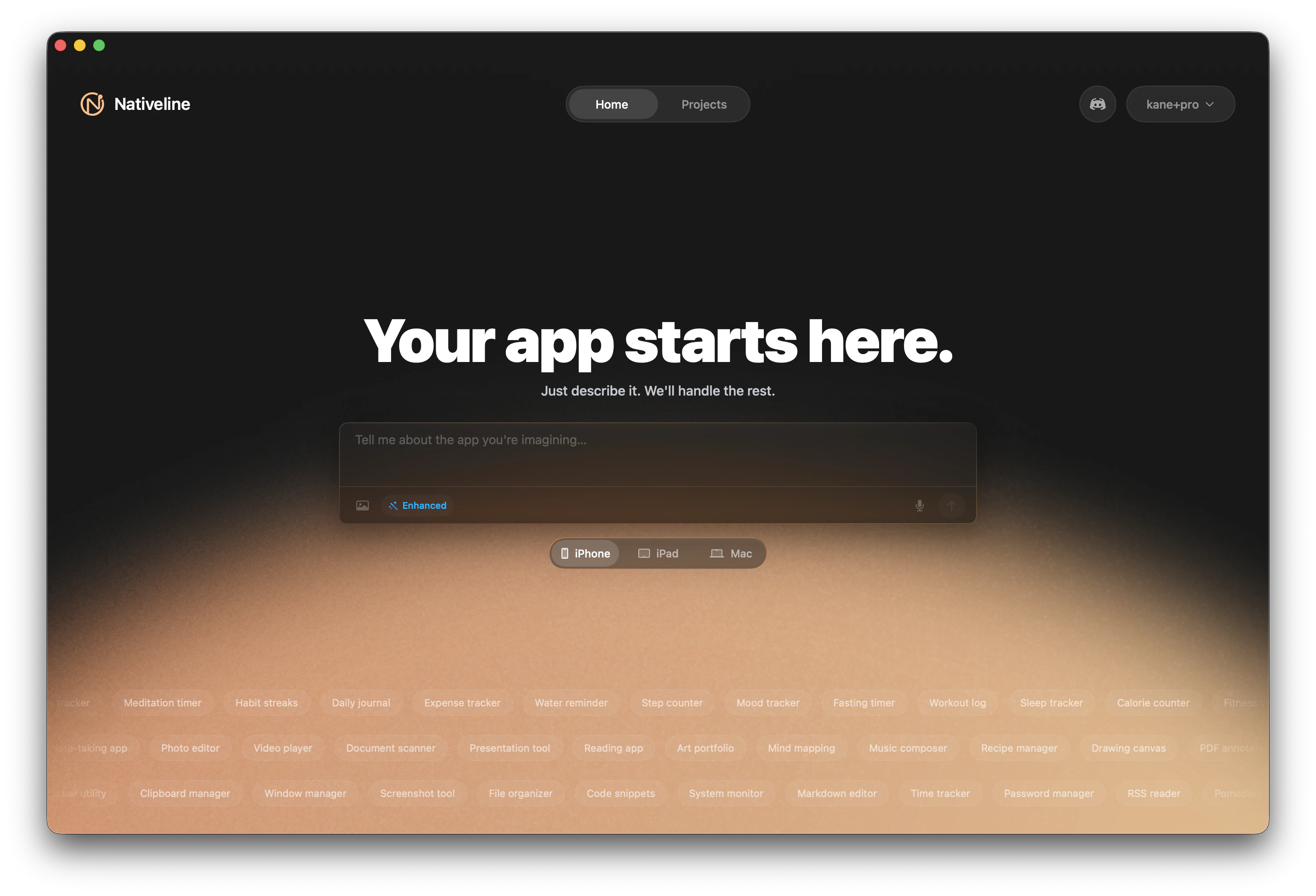
## The Home Page
After setup, you'll land on the Home Page where you can:
* **Create a new app** — Start a fresh project
* **Open existing projects** — Continue where you left off
* **Access account settings** — Manage your plan and preferences
 ***
## Troubleshooting Installation
This is a macOS security feature. To open anyway:
1. Right-click (or Control-click) on the Nativeline app
2. Select **Open** from the menu
3. Click **Open** in the dialog that appears
You only need to do this once.
If the automatic setup seems stuck:
1. Check your internet connection — Xcode is a \~12GB download
2. Make sure you have at least 20GB free disk space
3. Restart Nativeline and let it retry
4. Contact [support@nativeline.ai](mailto:support@nativeline.ai) if it continues to fail
Try these steps:
1. Make sure you're running macOS 15.1 or later
2. Delete and re-download the app from [nativeline.ai](https://nativeline.ai)
3. Check Console.app for error messages
4. Contact [support@nativeline.ai](mailto:support@nativeline.ai) with the crash report
If Xcode fails to download:
1. Check your internet connection
2. Try a wired connection if possible (large download)
3. Ensure you have 20GB+ free space
4. Restart your Mac and try again
5. Contact support if persistent
Nativeline requires about 20GB of free space for Xcode and the iOS Simulator. Free up space by:
1. Emptying Trash
2. Removing unused applications
3. Clearing Downloads folder
4. Using Storage Management (Apple Menu → About This Mac → Storage → Manage)
***
## Keeping Nativeline Updated
Nativeline regularly receives updates with new features, improvements, and bug fixes.
### Checking for Updates
To manually check for updates:
1. Click **Nativeline** in the menu bar
2. Select **Check for Updates...**
3. If an update is available, click **Install Update**
4. Nativeline will restart with the new version
### Automatic Update Checking
By default, Nativeline checks for updates automatically when you launch the app. You can adjust this in preferences.
### Viewing Your Version
To see which version you're running:
1. Click **Nativeline** in the menu bar
2. Select **About Nativeline**
3. Your version number is displayed
Keep Nativeline updated to get the latest AI improvements and features.
***
## What's Next?
You're all set up! Now it's time to create an account and build your first app.
Sign up and choose a plan
Create something amazing in 10 minutes
***
## Troubleshooting Installation
This is a macOS security feature. To open anyway:
1. Right-click (or Control-click) on the Nativeline app
2. Select **Open** from the menu
3. Click **Open** in the dialog that appears
You only need to do this once.
If the automatic setup seems stuck:
1. Check your internet connection — Xcode is a \~12GB download
2. Make sure you have at least 20GB free disk space
3. Restart Nativeline and let it retry
4. Contact [support@nativeline.ai](mailto:support@nativeline.ai) if it continues to fail
Try these steps:
1. Make sure you're running macOS 15.1 or later
2. Delete and re-download the app from [nativeline.ai](https://nativeline.ai)
3. Check Console.app for error messages
4. Contact [support@nativeline.ai](mailto:support@nativeline.ai) with the crash report
If Xcode fails to download:
1. Check your internet connection
2. Try a wired connection if possible (large download)
3. Ensure you have 20GB+ free space
4. Restart your Mac and try again
5. Contact support if persistent
Nativeline requires about 20GB of free space for Xcode and the iOS Simulator. Free up space by:
1. Emptying Trash
2. Removing unused applications
3. Clearing Downloads folder
4. Using Storage Management (Apple Menu → About This Mac → Storage → Manage)
***
## Keeping Nativeline Updated
Nativeline regularly receives updates with new features, improvements, and bug fixes.
### Checking for Updates
To manually check for updates:
1. Click **Nativeline** in the menu bar
2. Select **Check for Updates...**
3. If an update is available, click **Install Update**
4. Nativeline will restart with the new version
### Automatic Update Checking
By default, Nativeline checks for updates automatically when you launch the app. You can adjust this in preferences.
### Viewing Your Version
To see which version you're running:
1. Click **Nativeline** in the menu bar
2. Select **About Nativeline**
3. Your version number is displayed
Keep Nativeline updated to get the latest AI improvements and features.
***
## What's Next?
You're all set up! Now it's time to create an account and build your first app.
Sign up and choose a plan
Create something amazing in 10 minutes