> ## Documentation Index
> Fetch the complete documentation index at: https://docs.nativeline.ai/llms.txt
> Use this file to discover all available pages before exploring further.
# DMG Export for Mac Apps
> Export your Mac app as a DMG for distribution
import { Card, CardGroup, Steps, Tip, Note, Accordion, AccordionGroup } from "mintlify/components";
When you build a Mac app in Nativeline, you can export it as a DMG file for distribution outside the App Store. This gives you full control over how you share your app with users.
## What is a DMG?
DMG (Disk Image) is the standard macOS format for distributing apps. Your users download the DMG, open it, and drag the app to their Applications folder. If you've ever installed a Mac app from a website, you've used a DMG.
It's the expected format for Mac apps distributed outside the App Store — familiar to every Mac user.
 ## Requirements
Before you can export a DMG, make sure you have the following:
| Requirement | Details |
| ----------------------------- | ------------------------------------------------------------ |
| **Mac project** | Your project must target macOS (not iOS or iPadOS) |
| **Apple Developer account** | Required for code signing (\$99/year) |
| **App Store Connect API Key** | Required for notarization (the same key used for TestFlight) |
If you haven't set up your Apple Developer account yet, you'll need to do that first. Code signing and notarization are what make your DMG trustworthy to macOS.
## The Export Process
Open the Mac project you want to export in Nativeline.
Navigate to **Settings** and select the **Deploy** section.
Choose **DMG Export** as your distribution method.
Your project is compiled and archived into a release build.
The app is signed with your Developer ID certificate. This tells macOS the
app comes from an identified developer.
The signed app is packaged into a DMG file.
If enabled, the DMG is submitted to Apple for notarization. Apple scans it
for malicious content and staples a ticket to the file.
Your DMG file is ready. Download it and share it however you want.
## Notarization
Notarization is Apple's process for reviewing your app to ensure it doesn't contain malicious content. It's not App Store review — it's an automated security check.
### Why It Matters
Without notarization, macOS Gatekeeper will show users a warning dialog when they try to open your app. Most users won't get past that warning. Notarized apps open cleanly without any scary messages.
### How It Works
Nativeline uses the same App Store Connect API Key you set up for TestFlight. During the export process:
1. Your signed DMG is uploaded to Apple's notarization service
2. Apple scans it (usually takes a few minutes)
3. If approved, a notarization ticket is stapled to the DMG
4. The stapled DMG is what you distribute to users
### Notarization Timeline
Notarization typically takes 2-5 minutes. In rare cases during high Apple server load, it can take up to 15 minutes. Nativeline waits for the result and reports success or failure.
## Progress Tracking
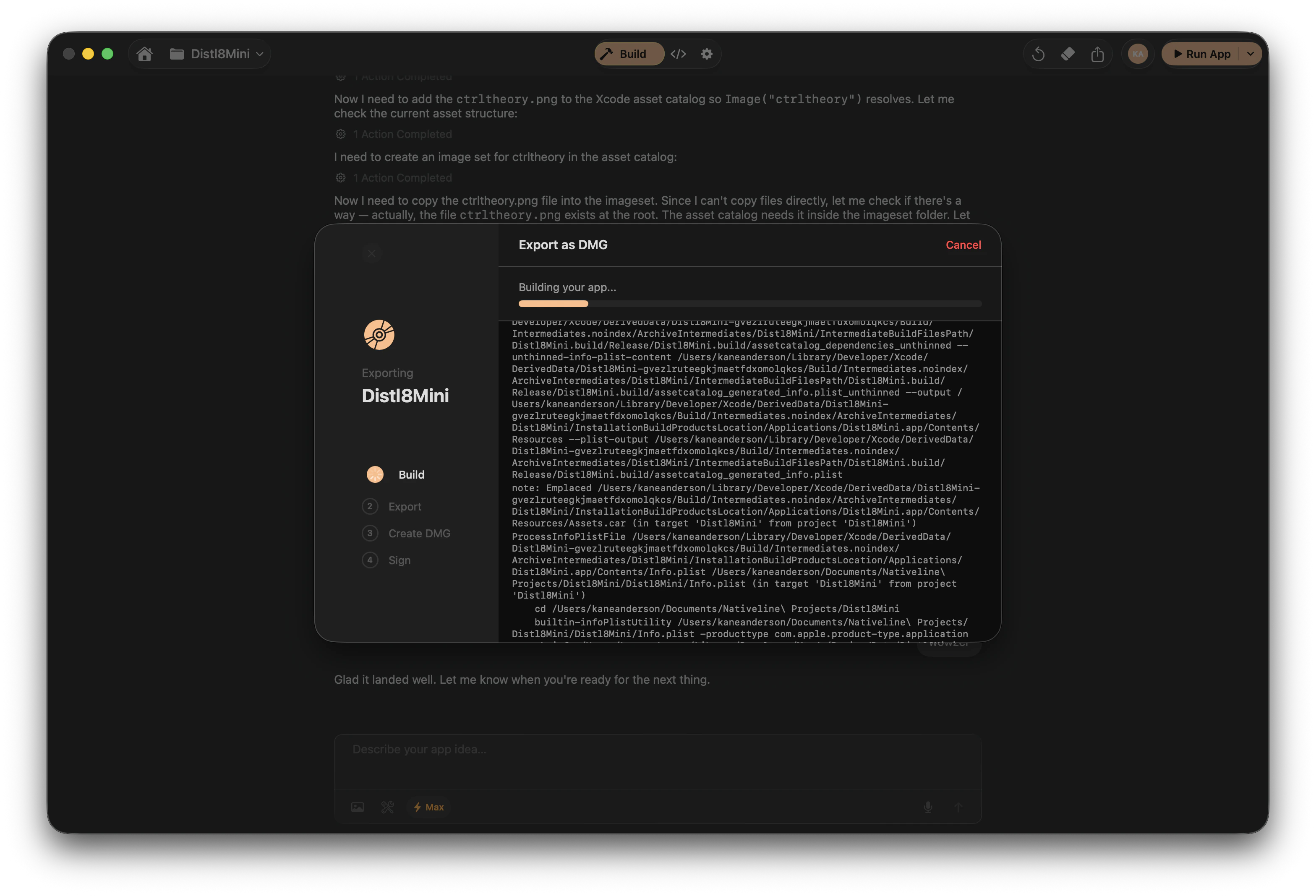
The export process shows real-time progress so you know exactly where things stand:
| Stage | What's Happening |
| ---------------- | -------------------------------------------- |
| **Archiving** | Compiling your project into a release build |
| **Exporting** | Creating the app bundle from the archive |
| **Creating DMG** | Packaging the app into a disk image |
| **Signing** | Applying your Developer ID code signature |
| **Notarizing** | Submitting to Apple and waiting for approval |
| **Complete** | Your DMG is ready to download |
Logs are available at each stage for troubleshooting if something goes wrong.
## Troubleshooting
Check that your Apple Developer certificates are valid and not expired. Go to
your Apple Developer account and verify your Developer ID Application
certificate is active. If it's expired, create a new one and update your
settings in Nativeline.
Ensure your App Store Connect API Key has the correct permissions. The key
needs access to notarization services. Also check that your app doesn't use
any unsigned third-party frameworks or libraries — notarization requires
everything in the bundle to be properly signed.
This usually means there are build errors in your project. Go back to your
project, check for compiler errors, fix them, and then retry the DMG export.
The archive step is essentially a release build, so any code issues will
surface here.
Check if your project includes large assets (images, videos, data files) that
shouldn't be bundled. Ask the AI to review your project's resource files and
remove anything unnecessary.
## Distribution
Once your DMG is ready, you can share it anywhere:
* **Your website** — Host the DMG as a download link
* **Email** — Send it directly to users or testers
* **File sharing** — Upload to Google Drive, Dropbox, or any file host
* **GitHub Releases** — Attach it to a release on your repository
You can distribute your DMG anywhere — your website, email, file sharing
services. Users just download, open, and drag to Applications.
DMG export is only available for Mac projects. iPhone and iPad apps must go
through TestFlight or the App Store.
## Related
Learn about all the ways to publish and distribute your apps.
Set up your Apple Developer account for code signing and distribution.
## Requirements
Before you can export a DMG, make sure you have the following:
| Requirement | Details |
| ----------------------------- | ------------------------------------------------------------ |
| **Mac project** | Your project must target macOS (not iOS or iPadOS) |
| **Apple Developer account** | Required for code signing (\$99/year) |
| **App Store Connect API Key** | Required for notarization (the same key used for TestFlight) |
If you haven't set up your Apple Developer account yet, you'll need to do that first. Code signing and notarization are what make your DMG trustworthy to macOS.
## The Export Process
Open the Mac project you want to export in Nativeline.
Navigate to **Settings** and select the **Deploy** section.
Choose **DMG Export** as your distribution method.
Your project is compiled and archived into a release build.
The app is signed with your Developer ID certificate. This tells macOS the
app comes from an identified developer.
The signed app is packaged into a DMG file.
If enabled, the DMG is submitted to Apple for notarization. Apple scans it
for malicious content and staples a ticket to the file.
Your DMG file is ready. Download it and share it however you want.
## Notarization
Notarization is Apple's process for reviewing your app to ensure it doesn't contain malicious content. It's not App Store review — it's an automated security check.
### Why It Matters
Without notarization, macOS Gatekeeper will show users a warning dialog when they try to open your app. Most users won't get past that warning. Notarized apps open cleanly without any scary messages.
### How It Works
Nativeline uses the same App Store Connect API Key you set up for TestFlight. During the export process:
1. Your signed DMG is uploaded to Apple's notarization service
2. Apple scans it (usually takes a few minutes)
3. If approved, a notarization ticket is stapled to the DMG
4. The stapled DMG is what you distribute to users
### Notarization Timeline
Notarization typically takes 2-5 minutes. In rare cases during high Apple server load, it can take up to 15 minutes. Nativeline waits for the result and reports success or failure.
## Progress Tracking
The export process shows real-time progress so you know exactly where things stand:
| Stage | What's Happening |
| ---------------- | -------------------------------------------- |
| **Archiving** | Compiling your project into a release build |
| **Exporting** | Creating the app bundle from the archive |
| **Creating DMG** | Packaging the app into a disk image |
| **Signing** | Applying your Developer ID code signature |
| **Notarizing** | Submitting to Apple and waiting for approval |
| **Complete** | Your DMG is ready to download |
Logs are available at each stage for troubleshooting if something goes wrong.
## Troubleshooting
Check that your Apple Developer certificates are valid and not expired. Go to
your Apple Developer account and verify your Developer ID Application
certificate is active. If it's expired, create a new one and update your
settings in Nativeline.
Ensure your App Store Connect API Key has the correct permissions. The key
needs access to notarization services. Also check that your app doesn't use
any unsigned third-party frameworks or libraries — notarization requires
everything in the bundle to be properly signed.
This usually means there are build errors in your project. Go back to your
project, check for compiler errors, fix them, and then retry the DMG export.
The archive step is essentially a release build, so any code issues will
surface here.
Check if your project includes large assets (images, videos, data files) that
shouldn't be bundled. Ask the AI to review your project's resource files and
remove anything unnecessary.
## Distribution
Once your DMG is ready, you can share it anywhere:
* **Your website** — Host the DMG as a download link
* **Email** — Send it directly to users or testers
* **File sharing** — Upload to Google Drive, Dropbox, or any file host
* **GitHub Releases** — Attach it to a release on your repository
You can distribute your DMG anywhere — your website, email, file sharing
services. Users just download, open, and drag to Applications.
DMG export is only available for Mac projects. iPhone and iPad apps must go
through TestFlight or the App Store.
## Related
Learn about all the ways to publish and distribute your apps.
Set up your Apple Developer account for code signing and distribution.