> ## Documentation Index
> Fetch the complete documentation index at: https://docs.nativeline.ai/llms.txt
> Use this file to discover all available pages before exploring further.
# Toolkit
> Add real assets to your app with # commands
Attach fonts, colors, images, sounds, data, videos, animations, and 3D models directly into your app — no setup required.
## What is the Toolkit?
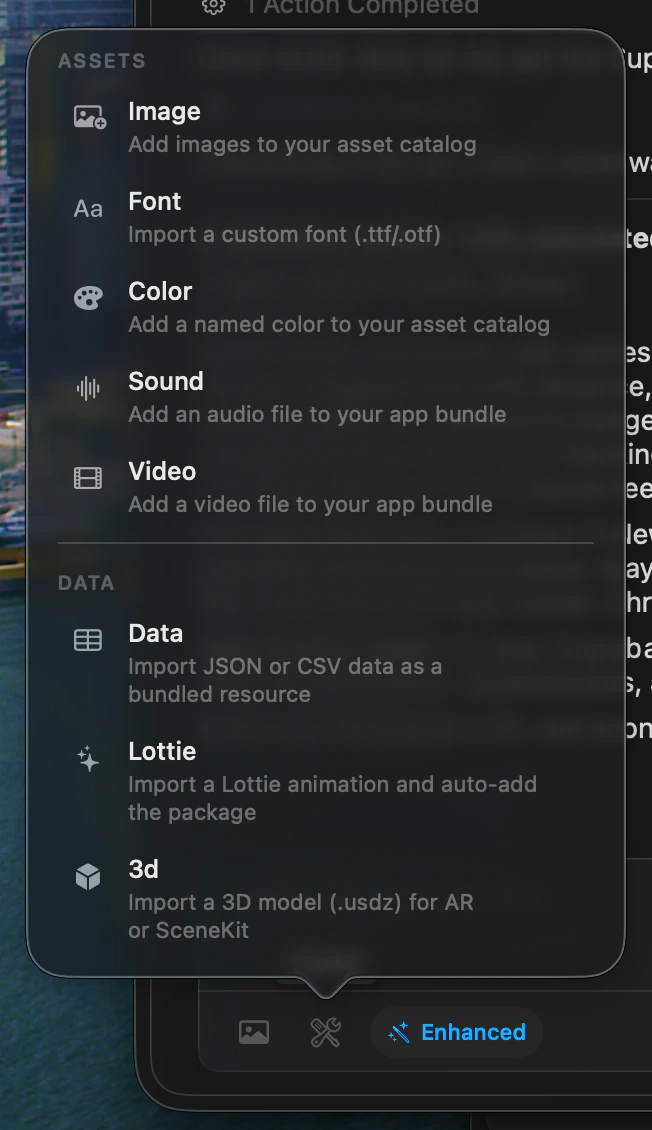
The Toolkit is a set of **# commands** that let you attach real files and assets to your conversation. When you type `#` in the chat input, a popover appears with all available commands organized into two sections:
* **Assets** — images, fonts, colors, sounds, videos, animations, and 3D models
* **Data** — JSON and CSV files
Each command opens a file picker (or a color picker for `#color`), lets you select your asset, and attaches it as an **orange chip** below the chat input. You then describe how the AI should use that asset, and it gets integrated directly into your app's Xcode project.
 ## Quick Reference
| Command | What it adds | File types | Icon |
| --------- | ----------------------- | ------------------------------------ | ------------------- |
| `#image` | Images to asset catalog | PNG, JPEG, GIF, HEIC, TIFF, BMP, SVG | photo |
| `#font` | Custom fonts | TTF, OTF | textformat |
| `#color` | Named colors | Color picker | paintpalette.fill |
| `#sound` | Audio files | MP3, WAV, AIFF | speaker.wave.2.fill |
| `#video` | Video files | MOV, MP4, QuickTime | video.fill |
| `#data` | JSON/CSV data | JSON, CSV | doc.text.fill |
| `#lottie` | Lottie animations | JSON (animation) | sparkles |
| `#3d` | 3D models | USDZ, Reality | cube.fill |
## How to Use # Commands
Position your cursor in the chat input and type the `#` character.
A popover displays all available commands, organized under Assets and Data.
Select the command that matches the type of asset you want to add.
A file picker opens filtered to the supported file types for that command. For `#color`, a color picker opens instead.
Your selected asset shows up as an orange pill-shaped chip below the chat input, confirming it's attached.
Type a description of where and how the asset should appear in your app.
The AI receives your asset and description, then integrates it into your app.
You can use toolkit commands alongside regular text. Just type `#` to open the popover, attach your file, then describe what you want.
`#image` is for app assets like icons, backgrounds, and UI elements. To show the AI a reference screenshot or mockup, drag-and-drop images directly into the chat instead.
## All Commands
Import PNG, JPEG, SVG, and more into your asset catalog.
Add TTF and OTF font files to your app.
Pick colors and add them to your asset catalog.
Bundle MP3, WAV, and AIFF audio into your app.
Embed MOV and MP4 videos for in-app playback.
Bundle structured data files into your app.
Add lightweight, scalable Lottie animations.
Import USDZ and Reality files for AR and 3D views.
## Quick Reference
| Command | What it adds | File types | Icon |
| --------- | ----------------------- | ------------------------------------ | ------------------- |
| `#image` | Images to asset catalog | PNG, JPEG, GIF, HEIC, TIFF, BMP, SVG | photo |
| `#font` | Custom fonts | TTF, OTF | textformat |
| `#color` | Named colors | Color picker | paintpalette.fill |
| `#sound` | Audio files | MP3, WAV, AIFF | speaker.wave.2.fill |
| `#video` | Video files | MOV, MP4, QuickTime | video.fill |
| `#data` | JSON/CSV data | JSON, CSV | doc.text.fill |
| `#lottie` | Lottie animations | JSON (animation) | sparkles |
| `#3d` | 3D models | USDZ, Reality | cube.fill |
## How to Use # Commands
Position your cursor in the chat input and type the `#` character.
A popover displays all available commands, organized under Assets and Data.
Select the command that matches the type of asset you want to add.
A file picker opens filtered to the supported file types for that command. For `#color`, a color picker opens instead.
Your selected asset shows up as an orange pill-shaped chip below the chat input, confirming it's attached.
Type a description of where and how the asset should appear in your app.
The AI receives your asset and description, then integrates it into your app.
You can use toolkit commands alongside regular text. Just type `#` to open the popover, attach your file, then describe what you want.
`#image` is for app assets like icons, backgrounds, and UI elements. To show the AI a reference screenshot or mockup, drag-and-drop images directly into the chat instead.
## All Commands
Import PNG, JPEG, SVG, and more into your asset catalog.
Add TTF and OTF font files to your app.
Pick colors and add them to your asset catalog.
Bundle MP3, WAV, and AIFF audio into your app.
Embed MOV and MP4 videos for in-app playback.
Bundle structured data files into your app.
Add lightweight, scalable Lottie animations.
Import USDZ and Reality files for AR and 3D views.