
What is the Toolkit?
The Toolkit is a set of # commands that let you attach real files and assets to your conversation. When you type# in the chat input, a popover appears with all available commands organized into two sections:
- Assets — images, fonts, colors, sounds, videos, animations, and 3D models
- Data — JSON and CSV files
#color), lets you select your asset, and attaches it as an orange chip below the chat input. You then describe how the AI should use that asset, and it gets integrated directly into your app’s Xcode project.
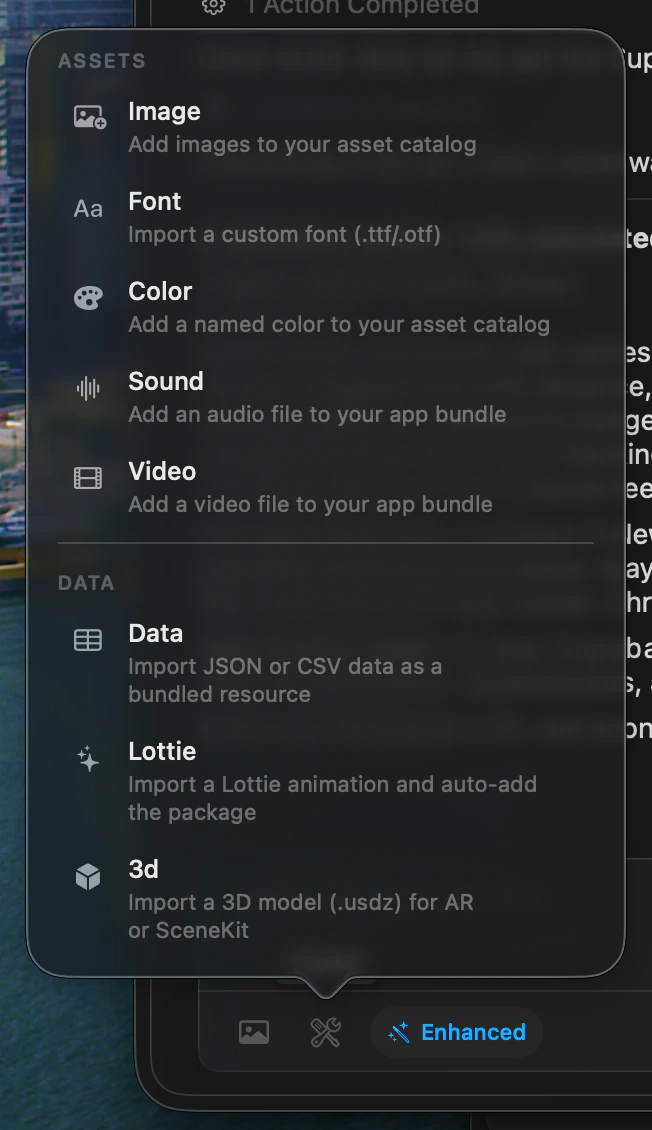
The Toolkit popover showing all available # commands

An attached file appears as an orange chip in the chat input
Quick Reference
How to Use # Commands
1
Type # in the chat input
Position your cursor in the chat input and type the
# character.2
The toolkit popover appears
A popover displays all available commands, organized under Assets and Data.
3
Click the command you want
Select the command that matches the type of asset you want to add.
4
Select your file
A file picker opens filtered to the supported file types for that command. For
#color, a color picker opens instead.5
The file appears as an orange chip
Your selected asset shows up as an orange pill-shaped chip below the chat input, confirming it’s attached.
6
Describe how the AI should use it
Type a description of where and how the asset should appear in your app.
7
Press Enter to send
The AI receives your asset and description, then integrates it into your app.
All Commands
#image — Add Images
Import PNG, JPEG, SVG, and more into your asset catalog.
#font — Custom Fonts
Add TTF and OTF font files to your app.
#color — Named Colors
Pick colors and add them to your asset catalog.
#sound — Audio Files
Bundle MP3, WAV, and AIFF audio into your app.
#video — Video Files
Embed MOV and MP4 videos for in-app playback.
#data — JSON & CSV
Bundle structured data files into your app.
#lottie — Lottie Animations
Add lightweight, scalable Lottie animations.
#3d — 3D Models
Import USDZ and Reality files for AR and 3D views.