
Installing Nativeline
Getting started with Nativeline takes just a few minutes. Download, install, and you’re ready to build.Before You Start
macOS 15.1+
Sequoia or later required. Check via → About This Mac.
Internet Connection
Required for AI features and downloading dependencies.
Download and Install
1
Visit nativeline.ai
Go to nativeline.ai and click the Download button.
2
Open the DMG
Once downloaded, double-click the
.dmg file to open it.3
Drag to Applications
Drag the Nativeline icon to your Applications folder.
4
Launch Nativeline
Open Nativeline from your Applications folder or Spotlight (Cmd+Space, type “Nativeline”).
First Launch
When you open Nativeline for the first time, everything you need is installed automatically.Automatic Setup
Nativeline downloads and installs all required development tools:- Xcode — Apple’s developer tools (~12GB)
- Command Line Tools — Build utilities
- iOS Simulator — For testing your apps
First launch takes longer due to downloading Xcode (~12GB). Make sure you have a stable internet connection and at least 20GB of free disk space.
What You’ll See
- Progress indicators as Xcode downloads
- Brief welcome animation introducing Nativeline
- Home page when setup is complete
The Home Page
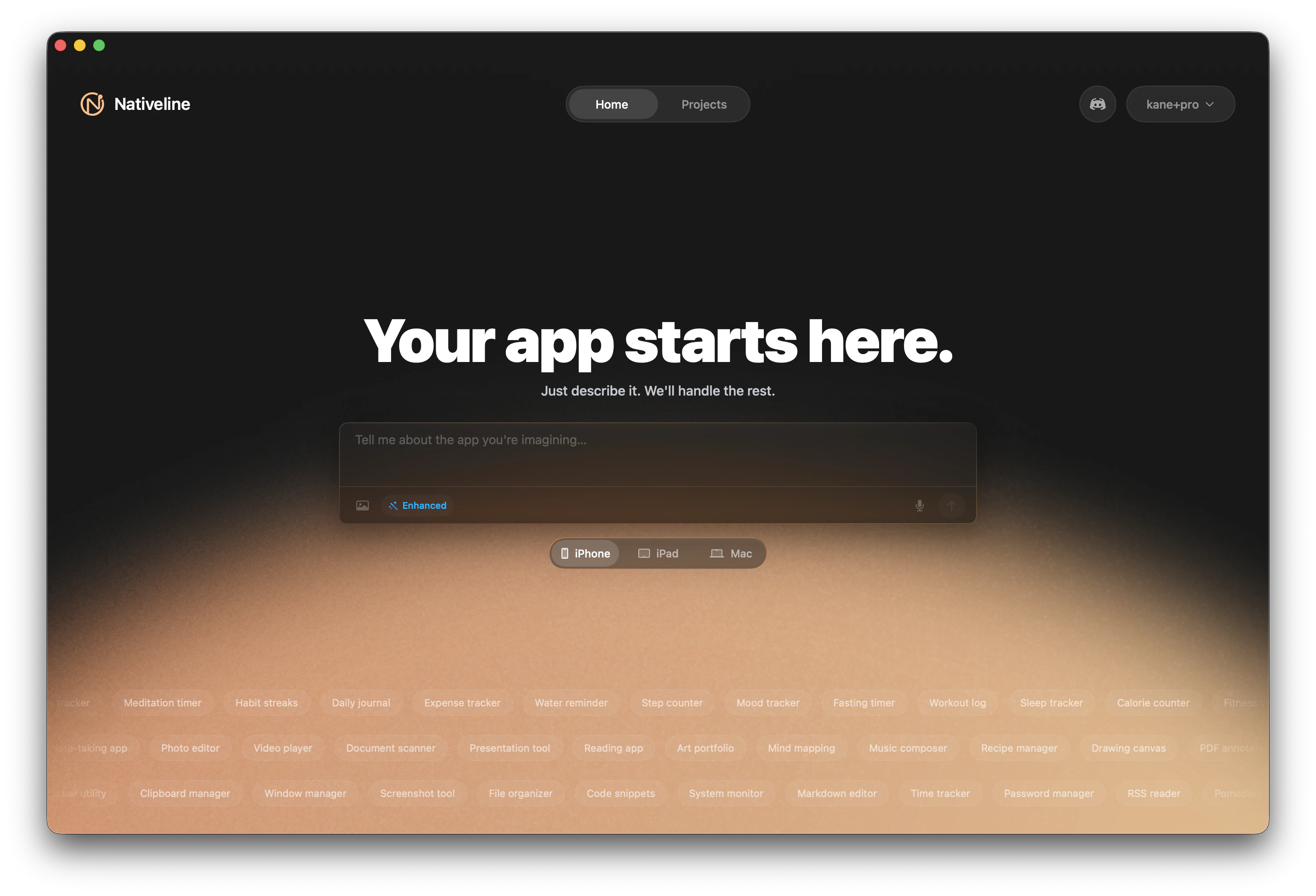
After setup, you’ll land on the Home Page where you can:- Create a new app — Start a fresh project
- Open existing projects — Continue where you left off
- Access account settings — Manage your plan and preferences
Troubleshooting Installation
'Nativeline can't be opened because it is from an unidentified developer'
'Nativeline can't be opened because it is from an unidentified developer'
This is a macOS security feature. To open anyway:
- Right-click (or Control-click) on the Nativeline app
- Select Open from the menu
- Click Open in the dialog that appears
Automatic installation is stuck
Automatic installation is stuck
If the automatic setup seems stuck:
- Check your internet connection — Xcode is a ~12GB download
- Make sure you have at least 20GB free disk space
- Restart Nativeline and let it retry
- Contact support@nativeline.ai if it continues to fail
App crashes on launch
App crashes on launch
Try these steps:
- Make sure you’re running macOS 15.1 or later
- Delete and re-download the app from nativeline.ai
- Check Console.app for error messages
- Contact support@nativeline.ai with the crash report
Xcode download keeps failing
Xcode download keeps failing
If Xcode fails to download:
- Check your internet connection
- Try a wired connection if possible (large download)
- Ensure you have 20GB+ free space
- Restart your Mac and try again
- Contact support if persistent
Not enough disk space
Not enough disk space
Nativeline requires about 20GB of free space for Xcode and the iOS Simulator. Free up space by:
- Emptying Trash
- Removing unused applications
- Clearing Downloads folder
- Using Storage Management (Apple Menu → About This Mac → Storage → Manage)
Keeping Nativeline Updated
Nativeline regularly receives updates with new features, improvements, and bug fixes.Checking for Updates
To manually check for updates:- Click Nativeline in the menu bar
- Select Check for Updates…
- If an update is available, click Install Update
- Nativeline will restart with the new version
Automatic Update Checking
By default, Nativeline checks for updates automatically when you launch the app. You can adjust this in preferences.Viewing Your Version
To see which version you’re running:- Click Nativeline in the menu bar
- Select About Nativeline
- Your version number is displayed
What’s Next?
You’re all set up! Now it’s time to create an account and build your first app.Create Your Account
Sign up and choose a plan
Build Your First App
Create something amazing in 10 minutes