
AI Modes
Nativeline gives you three AI modes, each optimized for different tasks. You can switch modes anytime from the chat input bar or the home page.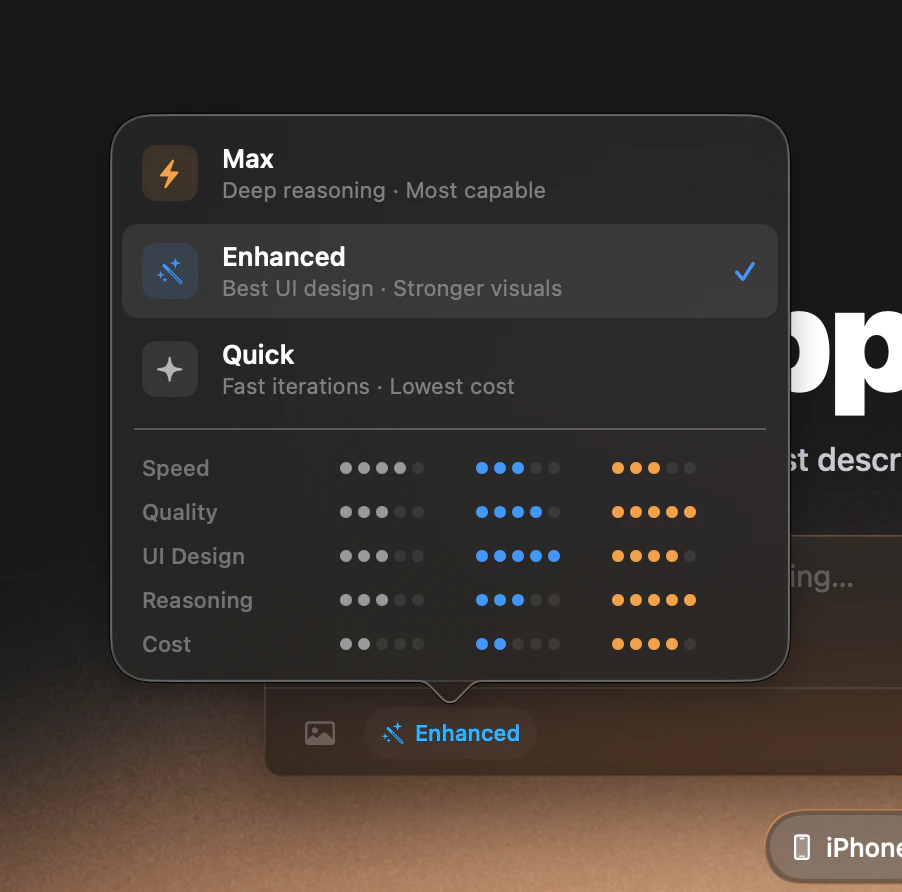
The AI mode selector in the chat input
The Three Modes
Quick
Fast & efficient
Best for rapid iteration, simple changes, and exploring ideas.
Enhanced
Best for most projects — DEFAULT
Best for most projects, visual design, and polished UIs. This is the default mode and the recommended starting point.
Max
Deep reasoning
Best for complex app logic, debugging difficult issues, and architectural decisions.
Mode Comparison
How to Switch Modes
1
Find the mode selector
Look for the AI mode selector in the chat input area at the bottom of the Build tab.
2
Open the selector
Click the current mode name to open the mode picker.
3
Choose your mode
Select the mode you want to use.
4
Send your message
Your next message will use the new mode. That’s it.
When to Use Each Mode
Quick — "I need fast iterations"
Quick — "I need fast iterations"
Use Quick mode when you’re trying different approaches, making small tweaks, or exploring ideas. It gives you fast responses at the lowest cost.Example prompts for Quick mode:
Enhanced — "I want great design"
Enhanced — "I want great design"
Enhanced is the default for good reason. It produces the best visual designs, polished UIs, and well-structured code. Use this for most projects.Example prompts for Enhanced mode:
Max — "I have complex logic"
Max — "I have complex logic"
Use Max when your app has intricate business logic, nested data relationships, or when you’re stuck on a difficult bug. Max reasons deeply about complex problems.Example prompts for Max mode:
How Modes Affect Bits
Different modes consume bits at different rates. More powerful modes use more bits per message, but there’s a nuance worth understanding.The Default: Enhanced
We recommend Enhanced mode for most users and most projects. Here’s why:- Best-looking UIs — Enhanced produces the most polished visual designs of any mode
- Fewer mistakes — It gets things right more often than Quick, saving you retries
- Cost-effective — Roughly the same total cost as Quick for most tasks, because fewer iterations are needed
- Default for every new project — You don’t need to change anything to get started
Related
Chat Interface
Learn how to use the chat workspace where you select and use AI modes
Plans & Pricing
Compare plans and understand how bits work across modes