
Creating a New App
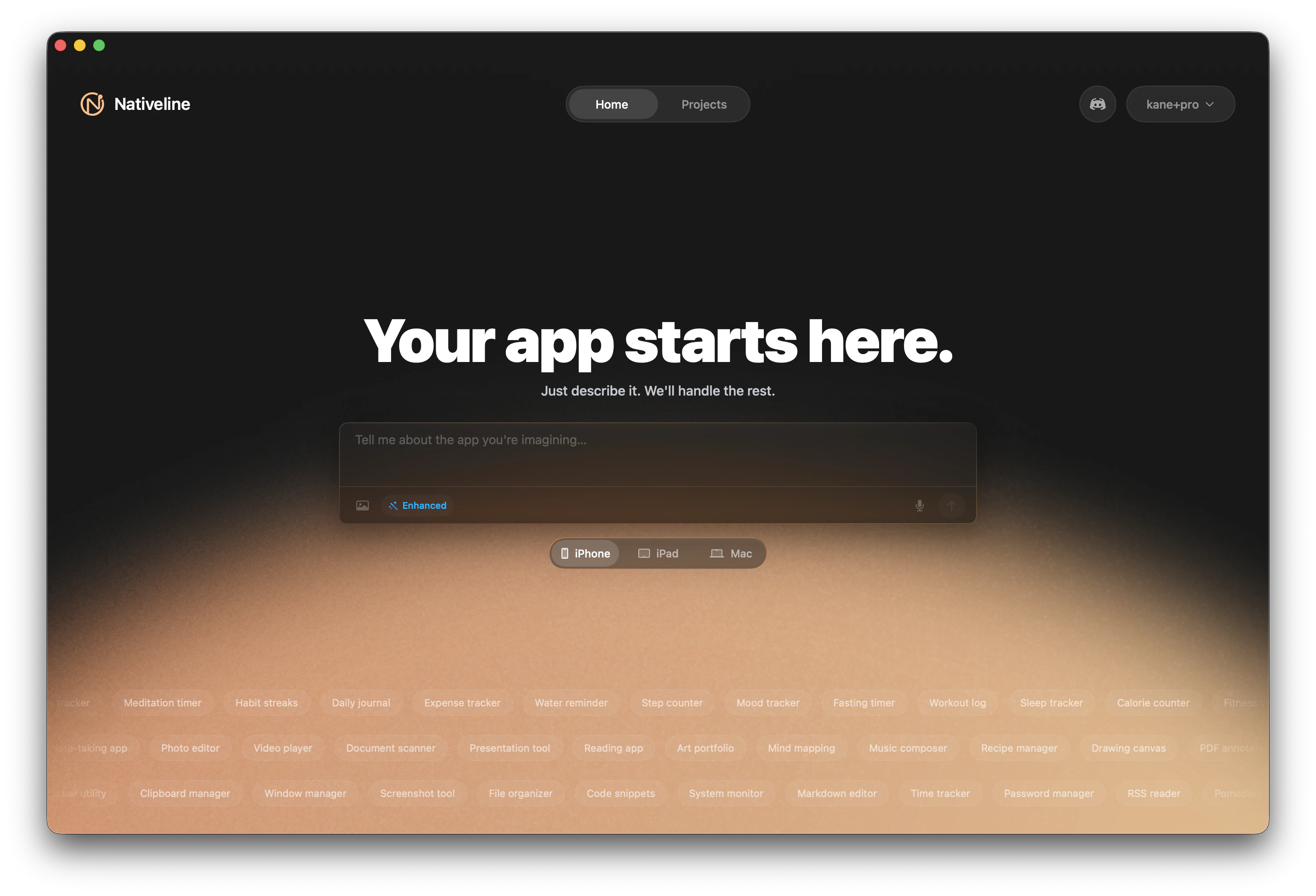
At the center of the home page is a chat input with the placeholder “Tell me about the app you’re imagining…”. This is where you describe your app idea in plain language. Be as detailed or as brief as you want — the AI works with whatever you give it. Before you hit Enter, configure a few options:1
Choose your platform
Select iPhone, iPad, or Mac as your target platform. This determines the UI patterns, simulator, and distribution options for your project.The platform selector is right above the chat input. Click the platform you want before typing your description.
2
Pick your AI mode
Choose the AI model that powers your build:
If you’re not sure, stick with Enhanced. It’s the default for a reason — it handles most projects well without being slow.
3
Attach images (optional)
Paste or drag images into the input as visual references. Use screenshots of apps you like, wireframes, or design mockups to guide the AI.The AI will analyze your images and use them to inform the design of your app. This is especially useful when you have a specific look in mind but don’t know how to describe it in words.
4
Create your app
Press Enter or click Create to start. You’ll be taken to the Project Wizard to finalize your app’s style and name.
Writing a Good App Description
Your initial description shapes what the AI builds. Here are some examples: Minimal description — works fine, the AI fills in the gaps:App Suggestion Carousel
Not sure what to build? The home page features three rows of scrolling app ideas — one row per platform. These suggestions are designed to spark inspiration and show you what’s possible.iPhone suggestions
iPhone suggestions
- Fitness tracker
- Meditation timer
- Habit streaks
- Recipe organizer
- Mood journal
- Expense splitter
- Flashcard quiz
- Water reminder
- Sleep tracker
- Daily planner
iPad suggestions
iPad suggestions
- Recipe manager
- Drawing canvas
- PDF annotator
- Study planner
- Mood board creator
- Project dashboard
- Reading tracker
- Note-taking app
- Photo collage maker
Mac suggestions
Mac suggestions
- Menu bar utility
- Clipboard manager
- Window manager
- Markdown editor
- Pomodoro timer
- System monitor
- Quick launcher
- File organizer
- Bookmark manager
Suggestions are just starting points. You can modify them, combine ideas, or ignore them entirely and write your own description from scratch.
Recent Projects
Below the chat input, you’ll find a grid of your existing projects sorted by most recent. This is your project library — every app you’ve created lives here. Each project card shows:- Project name — the name you chose in the wizard
- Creation date — when the project was first created
Managing Your Projects
Your recent projects grid updates automatically as you create new projects. The most recently accessed projects appear first, so the apps you’re actively working on are always at the top. If you have many projects, scroll down to find older ones. There’s no limit to how many projects you can have.What Happens Next
Once you hit Create, Nativeline takes your description and opens the Project Wizard. There you’ll choose a visual style, pick colors, and name your app before the AI starts building. The whole process from home page to a working app takes just a few minutes:- Home page — Describe your app and pick a platform
- Wizard — Choose style, colors, and a name
- Chat interface — The AI builds your app and you iterate together
Chat Interface
Learn how to talk to the AI and iterate on your app.
Project Wizard
Customize your app’s style, colors, and name before building.