
Embedded Simulator
The embedded simulator lives right inside Nativeline. No juggling windows, no switching apps. You build with chat on the left, and your app runs on the right.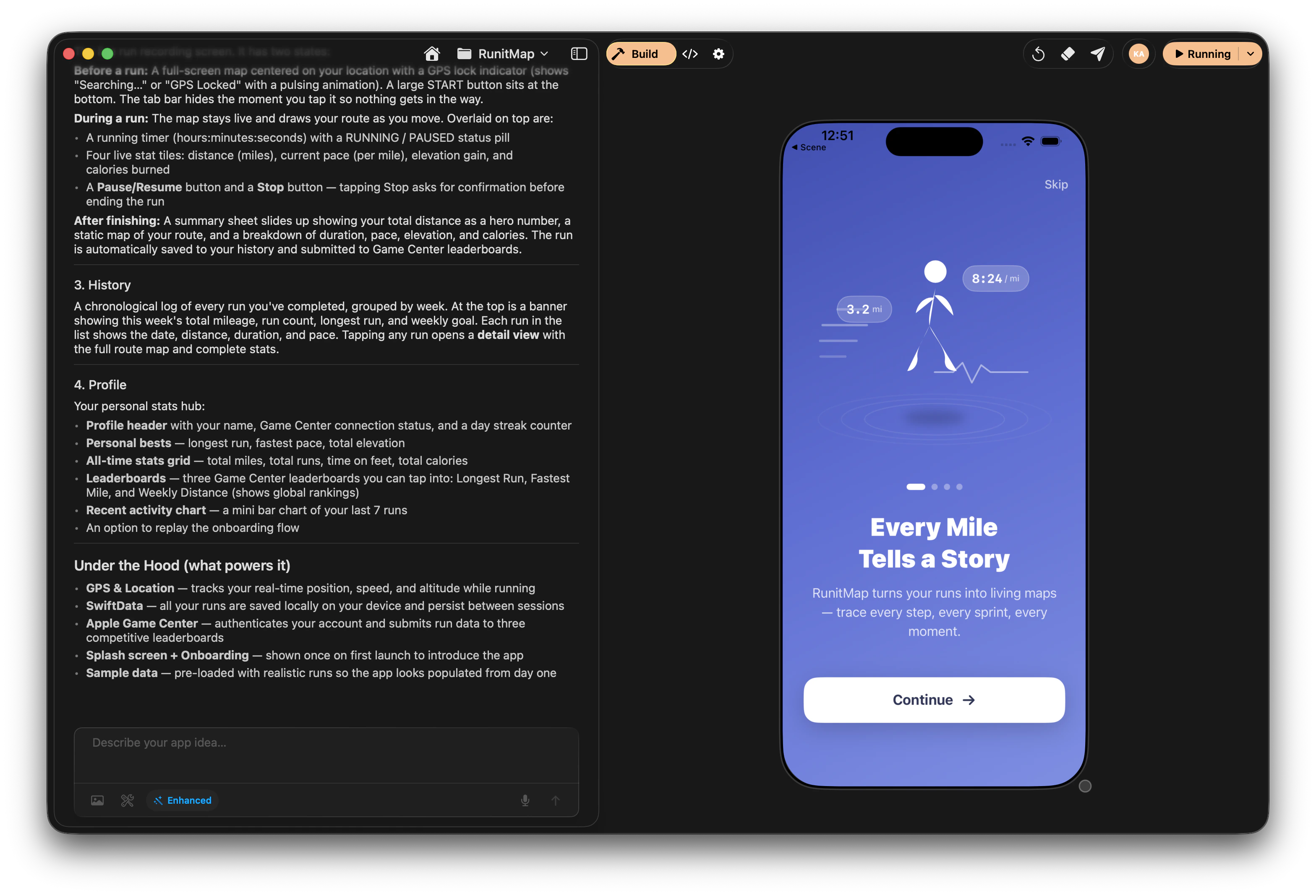
Chat on the left, your running app on the right
How It Works
When you open the Build tab, the right side of your workspace becomes a live simulator. Every time you make a change through chat and the build succeeds, your app automatically launches and updates in that same view.Getting Started
1
Open your project
Select a project from the Nativeline home screen or create a new one.
2
Go to the Build tab
Make sure the Build tab is selected on the left sidebar. The simulator panel appears on the right side of the workspace.
3
Send a message
Describe what you want to build or change. The AI writes the code and kicks off a build automatically.
4
Watch it appear
When the build succeeds, your app launches in the embedded simulator. You can interact with it immediately.
Interacting with the Simulator
The simulator responds to your mouse and keyboard just like a real device. Click inside the simulator frame and start using your app.Text Input
Click on any text field in the simulator and type with your Mac keyboard. The simulator uses your hardware keyboard by default.Device Selection
You can change the simulated device to test how your app looks and feels on different screen sizes. Look for the device selector in the simulator toolbar.Appearance
Toggle between light mode and dark mode directly from the simulator to make sure your app looks great in both. This is especially useful if your app supports dynamic colors or adaptive styling.Platform Differences
iPhone
Shows an iPhone simulator frame with your app running inside. Full touch interaction support.
iPad
Shows an iPad simulator frame. Great for testing tablet-specific layouts and multitasking.
Mac
Your app runs natively in a window on your Mac. No simulator needed.
When building for Mac, your app runs natively in a window on your Mac. There’s no simulator — you’re testing the real thing.
Build States
As your app compiles and launches, the simulator area shows what’s happening:First Launch
The first time the simulator boots, expect it to take 30 to 60 seconds. It needs to spin up the virtual device and load iOS. After that initial boot, subsequent launches are much faster. The simulator stays warm in the background, so rebuilds appear almost instantly.Screenshots and Recording
While the simulator is focused, you can capture what’s on screen:- Screenshot: Cmd+S (saved to your Desktop)
- Screen Recording: Use the Simulator menu to start and stop recording
What the Simulator Can’t Do
The simulator covers most of what you need for development, but some things require a real device:Troubleshooting
Simulator isn't showing
Simulator isn't showing
The simulator can take 30 to 60 seconds to appear on first boot. Make sure:
- The Build tab is selected (not Code or Settings)
- You’ve sent at least one message to trigger a build
- You’re building for iPhone or iPad (Mac apps run in a native window)
App not appearing after build
App not appearing after build
- Check the chat for build errors — the AI usually explains what went wrong
- Make sure the build has fully completed (watch for the success indicator)
- The app may have launched to a blank screen if there’s a runtime error — check the chat for details
Simulator is slow
Simulator is slow
- Close other heavy applications on your Mac
- Try a simpler device (iPhone SE instead of Pro Max)
- Restart Nativeline to reset the simulator
- Make sure your Mac has enough free memory
Can't interact with the app
Can't interact with the app
- Click directly inside the simulator frame — clicks outside it won’t register
- Make sure the simulator has finished loading (wait for the app to fully appear)
- If the app is frozen, send another message in chat to trigger a fresh build
Related
Chat Interface
Learn how to build your app through conversation
TestFlight Overview
Test on real devices with TestFlight