Customize your app’s style, colors, and name before building
After describing your app on the home page, the wizard walks you through a few quick questions. It only takes a minute, and you can skip steps if you don’t have strong preferences.The wizard shapes the visual identity of your app before a single line of code is written. Everything you choose here is passed to the AI as context for building.
Modern & polished — Refined with subtle shadows, smooth transitions, and careful spacing
Bold & expressive — Strong colors, large type, high contrast, attention-grabbing layouts
Dark & minimal — Dark backgrounds, muted accents, sleek and focused
Something else — Type a custom description of what you want
The AI uses your choice to set the tone for every screen it builds. If you pick “Bold & expressive,” expect big headings, vivid colors, and strong visual hierarchy. If you pick “Simple & clean,” expect restrained palettes and generous whitespace.Choosing “Something else” opens a text field where you can describe your ideal aesthetic in your own words. For example: “Retro 90s with pixel-art vibes” or “Glassmorphism with frosted backgrounds.”
2
Color Palette
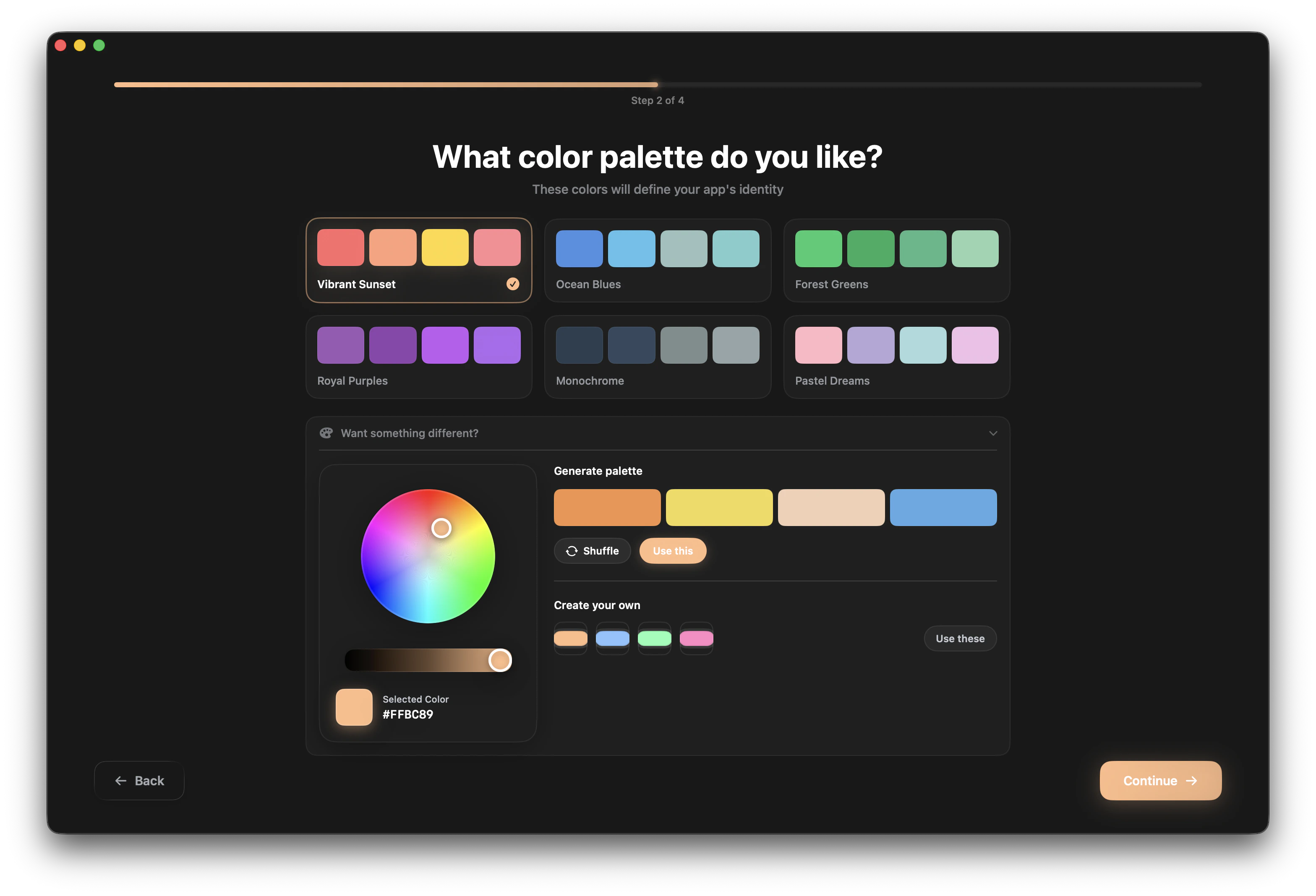
Pick the colors that define your app. You have three options: choose a preset, generate a palette, or build one from scratch.
The color palette step with wheel picker and palette generator
Review everything at a glance before moving forward. You’ll see your selected app feel, color palette, and platform all on one screen. If anything looks off, go back and adjust.This is your last chance to change things before the AI starts building, so take a moment to confirm your choices.
4
App Name
Name your app. The name is validated as you type:
No special characters allowed
No spaces allowed
No leading numbers
Must be at least one character
Examples of valid names: FitTrack, RecipeBox, ClipStash, Zenith, TasklyExamples of invalid names: My App (spaces), 123Go (leading number), Cool!App (special character)
You can skip straight to naming your app if you don’t have strong preferences. The AI will use sensible defaults.
Want something more specific? Expand the “Want something different?” section to reveal the palette generator.
1
Pick a base color
Use the color wheel to select a base color that represents your app’s identity. Drag around the wheel to find the right hue, then adjust brightness and saturation.
2
Shuffle for variations
Click Shuffle to generate harmonious palettes based on your base color. The generator creates complementary, analogous, and triadic color schemes automatically. Each shuffle produces a completely new set.
3
Apply your choice
When you find a palette you like, click “Use this” to apply it to your project.
The palette generator is great when you know your primary brand color but need help finding colors that work well with it.
If you have exact colors in mind — maybe from a brand guide, a design file, or a specific hex code you love — the custom option lets you pick 4 individual colors using native macOS color pickers.Each picker lets you:
Choose from the color wheel
Enter a specific hex code
Use the eyedropper to pick a color from anywhere on your screen
Set each of the 4 colors to your desired value, then click “Use these” to apply.This approach is ideal when you’re matching existing brand colors or a specific design system you’ve already defined.
The platform was already chosen on the home page, so it doesn’t appear in the wizard.
The AI treats these as strong preferences, not suggestions. If you choose “Dark & minimal” with Monochrome colors, you’ll get a dark-themed app with grayscale accents — guaranteed.
You can always ask the AI to adjust colors, style, or other design choices through the chat interface after your project is created. The wizard sets the starting point, but nothing is locked in permanently.
What if I skip everything?
If you skip the feel and color steps, the AI uses sensible defaults: “Modern & polished” feel with the Vibrant Sunset palette. You still need to provide an app name — that step can’t be skipped.
Can I go back to a previous step?
Yes. Use the back button to return to any previous wizard step and change your selection. Your choices are preserved as you navigate between steps.
Does the app feel affect functionality?
No. The app feel only affects visual design — spacing, typography, colors, and aesthetics. It doesn’t change what features the AI builds or how your app works.
Once you confirm your app name, Nativeline creates your project and opens the chat interface. The AI begins building your app immediately using the description you provided on the home page, styled with the feel and colors you chose in the wizard.You’ll see the AI working in real-time — writing Swift code, creating views, and assembling your app. Within moments, you’ll have a working preview to interact with.
Home Page
Where every project starts — describe your app and pick a platform.
Chat Interface
Start building and iterating on your app through conversation.