
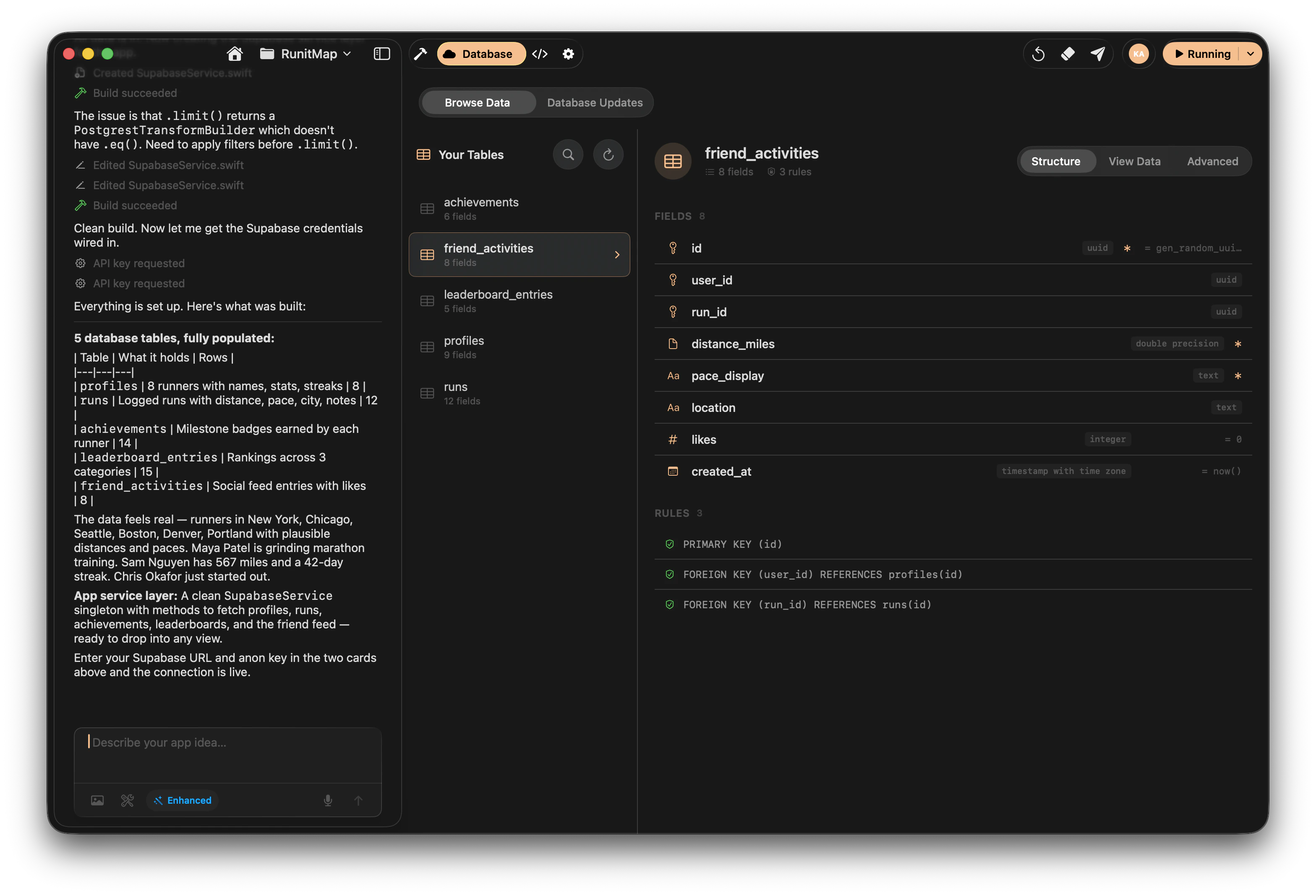
The Database tab showing the data browser
What You Can Do
Data Browser
View and manage your data in a spreadsheet-style grid. Search, sort, filter,
and inspect rows across all your tables.
Schema Viewer
Inspect your database structure — tables, columns, types, relationships,
indexes, and RLS policies.
SQL Editor
Write and execute raw SQL queries directly against your database for precise
control and debugging.
Migrations
Track and manage versioned schema changes the AI creates when you ask for
database modifications.
When It Appears
The Database tab shows up in your workspace tabs after you connect Supabase in Project Settings. Until then, you won’t see it. Once connected, it stays available for the lifetime of the project. If you disconnect Supabase later, the Database tab disappears. Reconnecting brings it back with all your data intact — nothing is lost on the Supabase side.Getting Started
1
Connect Supabase
Go to Settings and connect your Supabase project. You’ll need your
project URL and API keys. See the
Supabase Setup guide for detailed steps.
2
Open the Database tab
After connecting, the Database tab appears in your workspace alongside
your other tabs. Click it to open.
3
Start browsing your tables
Your tables load automatically. Click any table to view its data, or switch
to the Schema Viewer, SQL Editor, or Migrations view.
How the Database Tab Fits Into Your Workflow
You don’t have to choose between AI-driven development and manual database work. They complement each other:
Most of the time, you’ll ask the AI to handle schema changes through chat. Then you’ll flip to the Database tab to confirm everything looks right.
What the AI Can Do Through Chat
You don’t always need to open the Database tab. Many database operations can be handled directly through the chat interface:- Create tables — “Create a posts table with title, body, author, and timestamps”
- Add columns — “Add a status column to the posts table with a default of draft”
- Set up relationships — “Add a comments table that references posts via post_id”
- Enable RLS — “Add row level security to the posts table so users can only edit their own posts”
- Seed data — “Add 10 sample posts with realistic content”
- Write queries — “Show me how many users signed up each month”
Database Tab vs. Supabase Dashboard
You might wonder why you’d use the Database tab when Supabase has its own dashboard. Here’s the difference:
The Nativeline Database tab is designed for the build loop — quick checks, verification, and debugging while you’re actively developing. For advanced database administration (backups, extensions, connection pooling), you’ll still use the Supabase dashboard directly.
The Database tab connects to your Supabase database using the credentials you
provided during setup. It reads and writes the same data your app uses — there’s
no separate copy.
Supported Database Features
The Database tab works with standard PostgreSQL features that Supabase supports:- Tables and views — Browse any table or view in your public schema
- All PostgreSQL data types — text, integer, boolean, uuid, timestamp, jsonb, arrays, and more
- Foreign keys and relationships — See how tables connect to each other
- Row Level Security — View and understand RLS policies
- Indexes — See which columns are indexed for performance
- Functions and triggers — View through the SQL Editor
Frequently Asked Questions
Can I use the Database tab with a free plan? No. The Database tab requires the Pro plan. You also need to connect a Supabase project first. Does the Database tab work with any PostgreSQL database? The Database tab is designed specifically for Supabase. It uses the Supabase API to connect and manage your data. Other PostgreSQL providers are not supported. Will changes I make in the Database tab affect my live app? Yes. The Database tab connects to the same Supabase database your app uses. Any data you modify through the SQL Editor or migrations will immediately affect your app. Can I use the Database tab and the AI chat at the same time? Absolutely. You can have the Database tab open while chatting with the AI. This is the recommended workflow — ask the AI to make changes, then verify them in the Database tab. What if I don’t see the Database tab? Make sure you’ve connected Supabase in your project settings and that you’re on the Pro plan. The tab only appears after a successful Supabase connection. If you’ve just connected, try closing and reopening your project. Can the AI read my database schema when generating code? Yes. When Supabase is connected, the AI is aware of your database structure. It uses this context to generate accurate code that matches your tables, columns, and relationships.Related
Supabase Setup
Connect your Supabase project to Nativeline.
Chat Interface
Learn how to use the AI chat to build features and manage your database.